
Receipts are essential evidence for expenses, reimbursements, bookkeeping, tax preparation, and financial reporting—but they rarely arrive in a format that is ready to analyze. They may be saved as PDFs, scanned images, exported reports, or mixed business documents. An Online Receipt Scanner helps convert that fixed, document-based information into structured data that can be reviewed, edited, searched, and exported for accounting workflows.
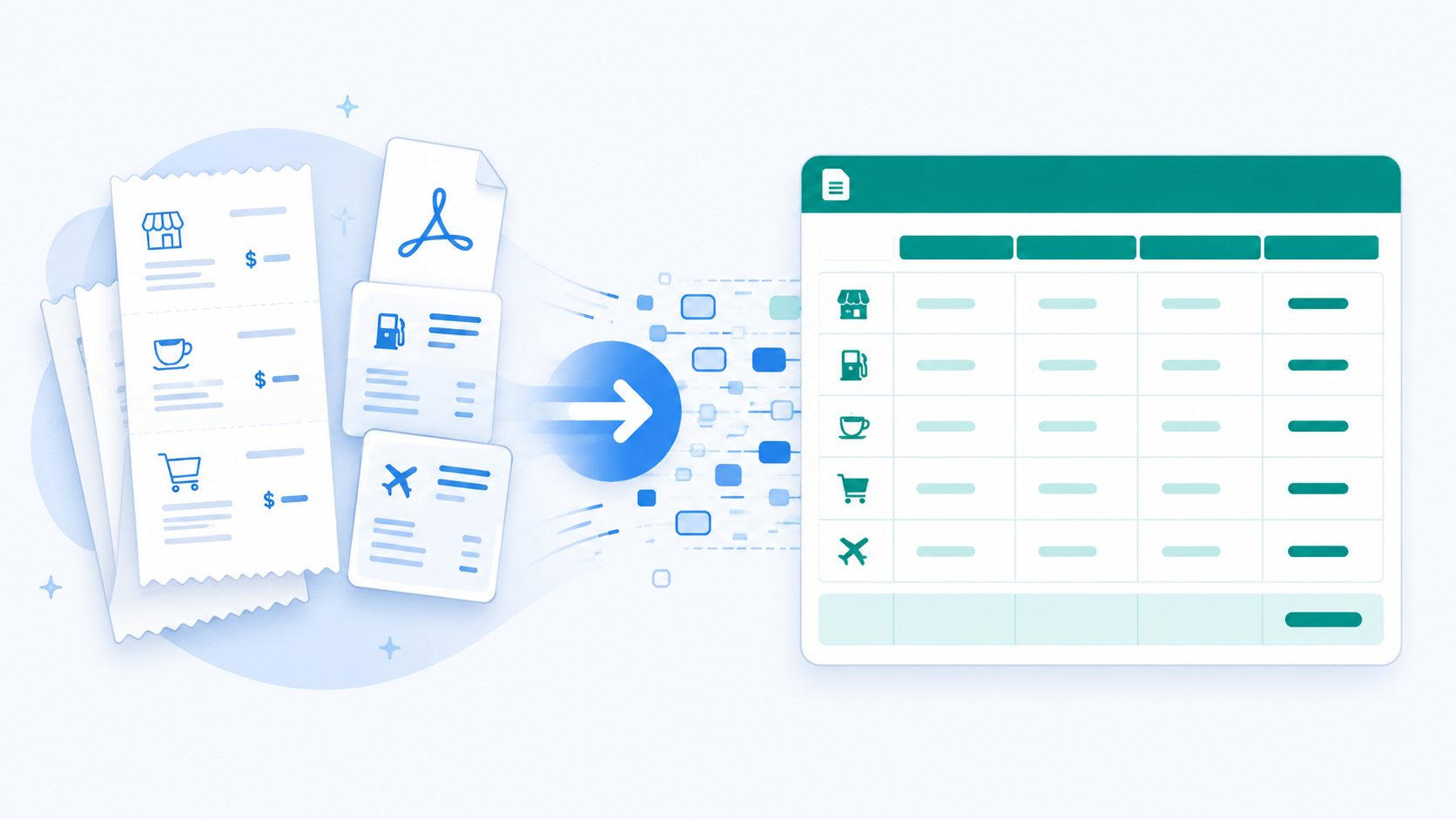
Instead of manually reading each receipt and typing merchant names, dates, line items, taxes, and totals into a spreadsheet, teams can use BankGPT to turn receipt content into an online Excel-style table. The result is a more practical workflow: capture the useful table data, verify it, make corrections where necessary, and download it in the format required by the next system.
What Does an Online Receipt Scanner Do?
An Online Receipt Scanner reads receipt content from a PDF or supported document, identifies structured information, and organizes the relevant data into a table. The extracted result is presented in an online spreadsheet view, where you can browse records, search for a value, edit a field, and prepare the data for export.
After processing, you can download the structured output in XLSX, Excel, CSV, JSON, or Xero-compatible format. That flexibility matters because different teams use the same receipt information differently. An accountant may need an Excel file for reconciliation, a data analyst may prefer CSV or JSON, and a bookkeeping workflow may require a Xero-ready output.
The purpose is not merely to convert a file extension. A good receipt-scanning workflow converts information locked in a document layout into data that can be sorted, filtered, checked, reused, and moved into a financial process. This reduces repetitive transcription while maintaining a review stage for business-critical numbers.
Documents That Work Best
The strongest candidates for an Online Receipt Scanner are documents where important values are arranged in a clear table or table-like layout. A single receipt may include a vendor name, transaction date, invoice number, items, quantity, tax, payment method, and total. A larger PDF may contain several expense records or a printed report with multiple tabular sections.
Common examples include:
- Receipts and expense-supporting documents saved as PDFs.
- Bank-statement printouts with transaction rows.
- Monthly company income and expense reports.
- Year-end budget sheets and forecast tables.
- Purchase summaries, invoice registers, and reimbursement records.
- Financial documents exported from accounting, ERP, or payment platforms.
The source PDF does not need to be made entirely of tables. It may contain a cover page, document title, explanatory notes, approval language, signatures, or other narrative content. The Online Receipt Scanner focuses on finding the tabular data portions and arranging them as structured rows and columns, rather than transferring every unrelated piece of text into the output.
For instance, a monthly expense report may contain a management summary at the top, a detailed transaction table in the middle, and a note about approval rules at the bottom. The valuable part for reconciliation is usually the transaction table. Extracting that table into a spreadsheet avoids the need to manually separate data rows from surrounding text.
From Receipt PDF to Editable Data
A receipt often looks simple on screen, yet manual extraction becomes difficult when there are dozens or hundreds of documents. Copying content from a PDF can break columns, omit values, alter number formatting, or mix page headers with transaction rows. Repeating this work across a reporting period is expensive and creates opportunities for avoidable errors.
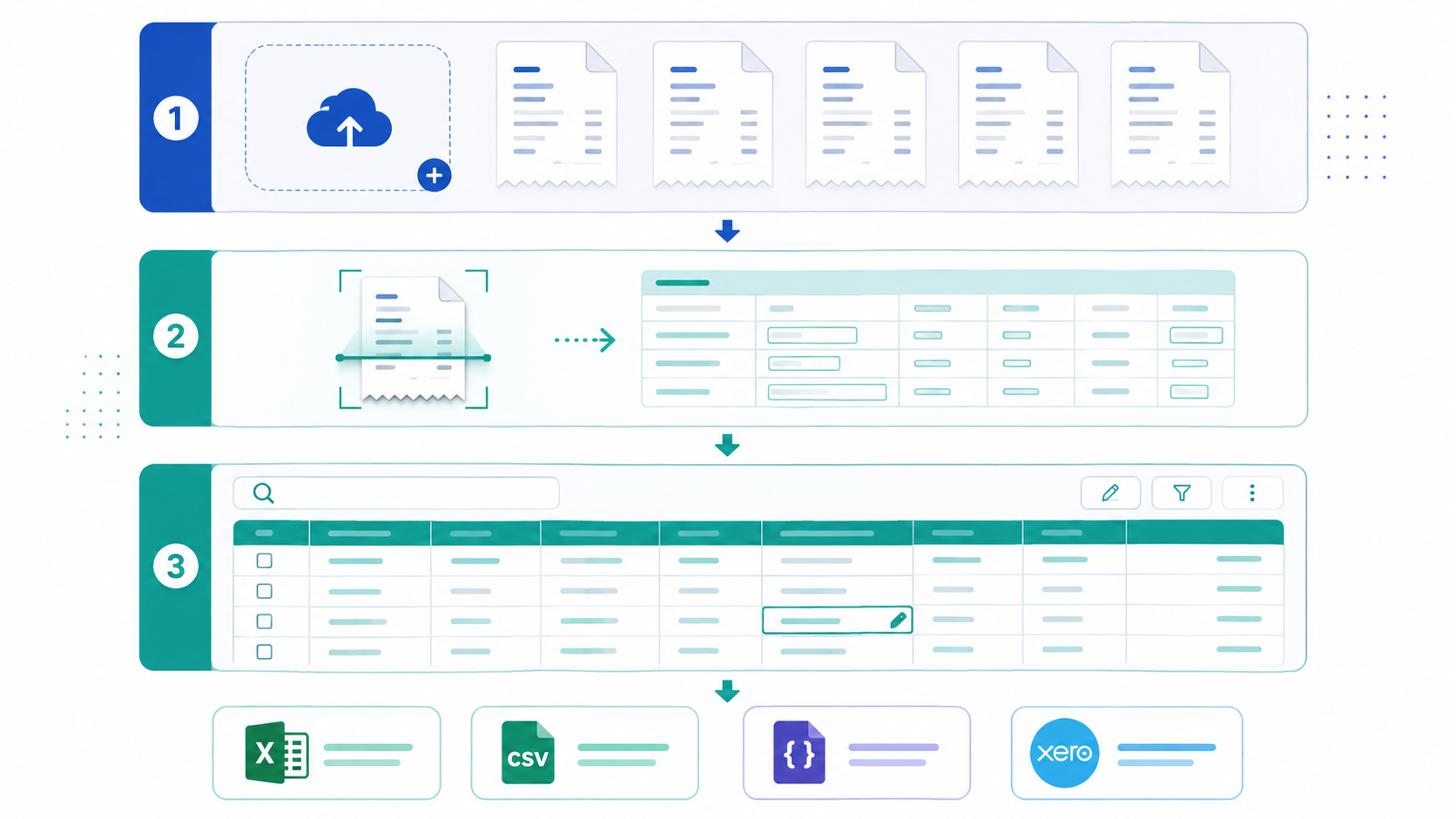
With the Online Receipt Scanner, receipt data can be organized into an online Excel-style document for immediate inspection. You can search across extracted values, update fields that need clarification, and review data before it enters an accounting workbook or software platform.
This approach is particularly useful for document-heavy finance tasks. A team handling expense claims can process supporting receipts before preparing reimbursement data. A bookkeeper can turn collections of receipt PDFs into structured records for account coding. A finance analyst can extract payment and expense tables from periodic reports before comparing them with internal ledgers.
Depending on document size and layout, processing can take from seconds to several minutes. That is a major improvement over days of manual copying, formatting, and checking across a large document collection. Automation handles the repetitive extraction work, while people spend their time verifying exceptions and making financial judgments.
Prepare Source Files for Accuracy
The output quality depends in part on the quality of the original receipt or report. Since the goal is to build a reliable data set, submit documents with readable values, visible row and column alignment, complete table sections, and sufficient scan resolution whenever possible.
A clear source makes recognition more accurate and faster. Avoid uploads where text is heavily blurred, table edges are cut off, pages are tilted, values overlap, or parts of a row are missing. If a receipt contains multiple pages, make sure each page is legible and includes the full table or relevant record details.
If a long document contains a large amount of narrative text but only one important table, consider taking a screenshot of the table area before submitting it. Image inputs can provide a cleaner target for recognition and reduce irrelevant information. This is useful when a report combines policy text, commentary, and a small but essential expense table.
At the same time, manual cropping is optional. The Online Receipt Scanner can process mixed documents containing both text and tables. It detects the relevant table content, converts it into Excel, CSV, JSON, or Xero-oriented data, and leaves unrelated text out of the structured result. Cropping simply helps maximize speed and accuracy when the source page is complex.
How to Scan and Export Receipts
The workflow is designed to be straightforward and repeatable:
- Upload a PDF, DOC, DOCX, or another supported document that contains valid table data.
- Select the output format you need, such as XLSX, Excel, CSV, JSON, or Xero.
- Click Convert Now to begin processing.
- When processing finishes, click Download to save the converted data in the selected format.
- If you need another format later, select a different output type and download it again without repeating the entire workflow.

This last capability is important for teams that work across multiple tools. You might first download an XLSX file to validate totals with colleagues, then export CSV for a database upload, JSON for an internal application, or Xero format for bookkeeping. The same processed receipt dataset can serve several downstream needs.
Use the Online Receipt Scanner when your receipts and financial documents need to become editable, portable data rather than static files stored in a folder.
Why It Beats Manual Entry
Manual receipt entry may look manageable for a few documents, but it does not scale. Every document requires someone to locate values, create columns, type entries, correct formatting, and check whether the copy matches the source. The same person may repeat that work month after month for routine expense records.
An Online Receipt Scanner improves this process by automating the repetitive conversion stage and preserving a practical verification step. Its main benefits include:
- Faster processing: Structured data can be extracted in seconds to minutes instead of requiring lengthy manual transcription.
- Higher consistency: The output is organized as tabular records rather than depending on inconsistent copy-and-paste formatting.
- Improved accuracy: Clear source tables can be recognized and presented for review, reducing common retyping mistakes.
- Editable online results: Search, review, and correct the data before downloading it.
- Multiple output choices: Export the same processed information as XLSX, Excel, CSV, JSON, or Xero-ready data.
- Less repetitive work: Teams can focus on validation, coding, reconciliation, and exceptions instead of recreating table layouts.
The gain is more than speed. It is a change in how teams allocate attention. Machines process repeated visual-to-table conversion; people apply accounting context and confirm whether the extracted record is appropriate for the business process.
Practical Accounting Use Cases
Consider a business that receives employee expense receipts throughout the month. Instead of creating a spreadsheet row for every receipt manually, the finance team can use an Online Receipt Scanner to extract the useful fields, review the results, and download an Excel or Xero-oriented file for the reimbursement workflow.
A bookkeeping service can use the same process for clients who submit scanned receipts or PDF statement attachments. Once the data is structured, it becomes easier to sort by date, merchant, amount, or category; identify missing information; and prepare records for import into an accounting system.
For larger reports, the process can also support financial analysis. A revenue report delivered as a PDF may include a detailed table of dates, departments, product lines, revenue, and costs. Converting those rows to CSV or XLSX allows analysts to filter records, calculate trends, compare periods, and combine the results with data from other systems.
A sensible quality-control routine is simple: submit clear source documents, verify several important rows against the original receipt or report, correct exceptions in the online table, and choose the download format that matches the next workflow. This combines automation with appropriate financial oversight.
Frequently Asked Questions
Can an Online Receipt Scanner read scanned receipt images?
Yes. The scanner processes PDF, DOC, DOCX, and other supported documents, and image inputs can also be submitted when the receipt is a clear scan or screenshot. For best accuracy, use readable values, visible row and column alignment, complete table sections, and sufficient resolution.
Which output formats are available?
After processing, you can download the structured data in XLSX, Excel, CSV, JSON, or Xero-compatible format. You can select a different output type later and download the same processed dataset again without repeating the workflow.
How long does receipt scanning take?
Processing time depends on document size and layout, and can range from seconds to several minutes. That is a major improvement over manual copying and formatting across a large collection of receipts and reports.
Can the scanner handle documents that mix text and tables?
Yes. The scanner detects the relevant table content inside mixed documents, converts it into structured rows and columns, and leaves unrelated narrative text out of the result. Manual cropping is optional and simply helps maximize speed and accuracy for complex pages.
Make Receipt Data Ready for Work
Static receipt files should not create an endless manual data-entry backlog. An Online Receipt Scanner converts receipt PDFs and document-based tables into usable structured data that can be searched, edited, and downloaded in XLSX, Excel, CSV, JSON, or Xero formats. It is well suited to receipts, bank statements, expense reports, budgets, and other table-focused financial documents.
Try the Online Receipt Scanner to turn your next receipt or financial report into downloadable accounting data. Visit BankGPT to explore more AI-powered tools for extracting, organizing, and working with financial documents.
Jordan Lee is a small business owner and independent reviewer of banking and FinTech tools. He writes practical, no-jargon guides to help founders spend less time on paperwork and more time growing their ventures.