
Combine spreadsheets without rebuilding the same report by hand. Upload XLSX, XLS, CSV, or JSON data, arrange the sources, review the output, and download one organized workbook.
 99.9% Accuracy
 200+ Languages
 Unlimited Count
 Multi Files
 Private and Secure



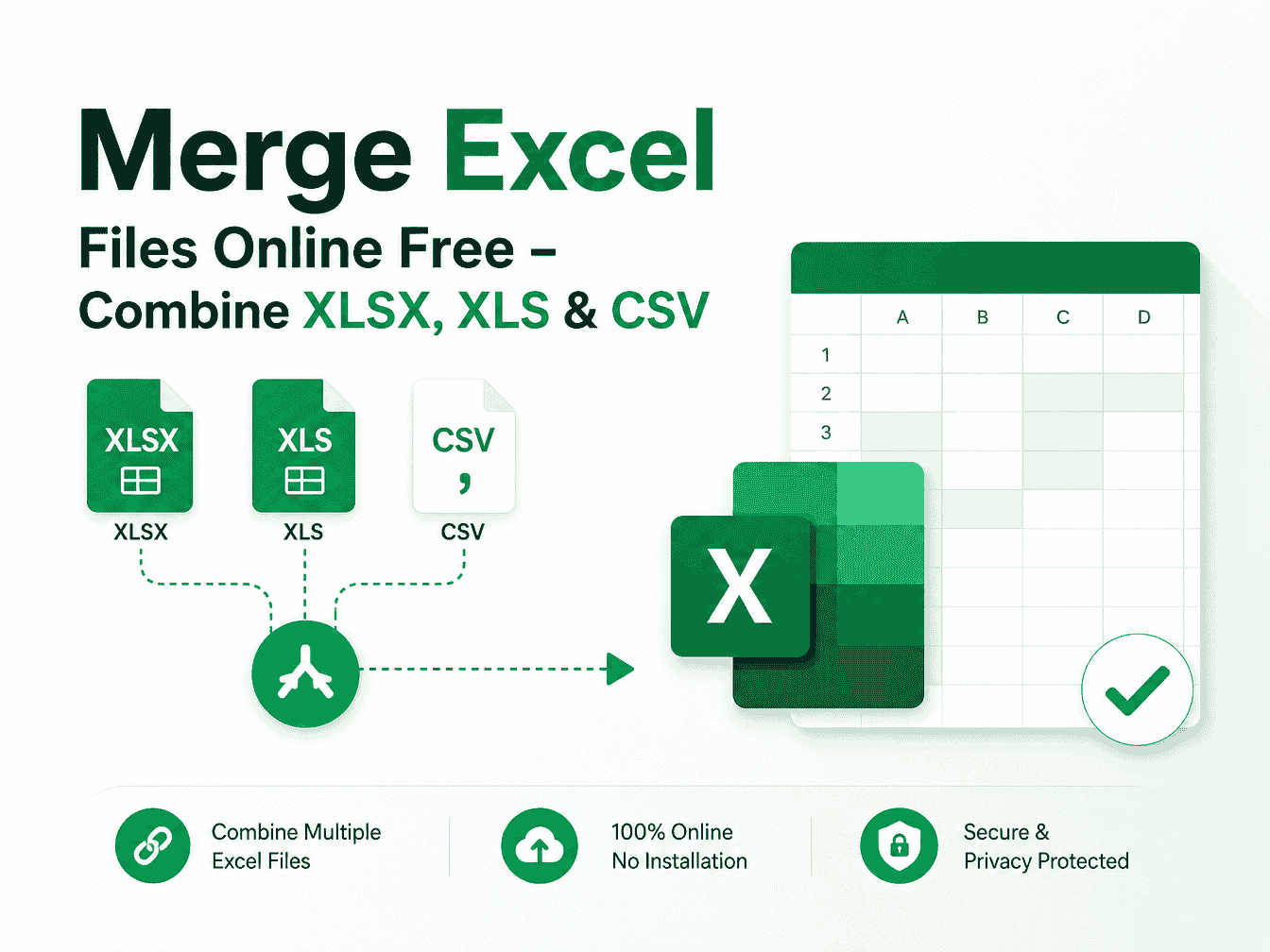
Merge Excel Files Online Free - Combine XLSX, XLS & CSV
Merge Excel files online for free. Combine XLSX, XLS, CSV, and JSON data into one workbook, review the result, and download a clean file in minutes.
What Is Merge Excel Files?
Merge Excel files is an online workflow for bringing data from separate spreadsheets into one usable result. Instead of opening each workbook, copying rows, and checking every paste, you can collect compatible XLSX, XLS, CSV, and JSON sources in one place. Use it to combine monthly reports, department exports, inventory lists, or data received from several teams. Review the structure before export so the final workbook is easier to share, filter, and continue editing.
Why Choose BankGPT's Merge Excel Tool?
BankGPT helps you merge Excel files with a simple, browser-based flow built for routine data work. Add several sources, place them in the order you need, and choose the merge approach that matches your tables. The tool is designed to make consolidated data easier to inspect before download, reducing the repetitive copy-and-paste work that often creates missing rows, mismatched columns, and duplicate headers. It is a practical Excel merger for quick reporting and recurring file consolidation.
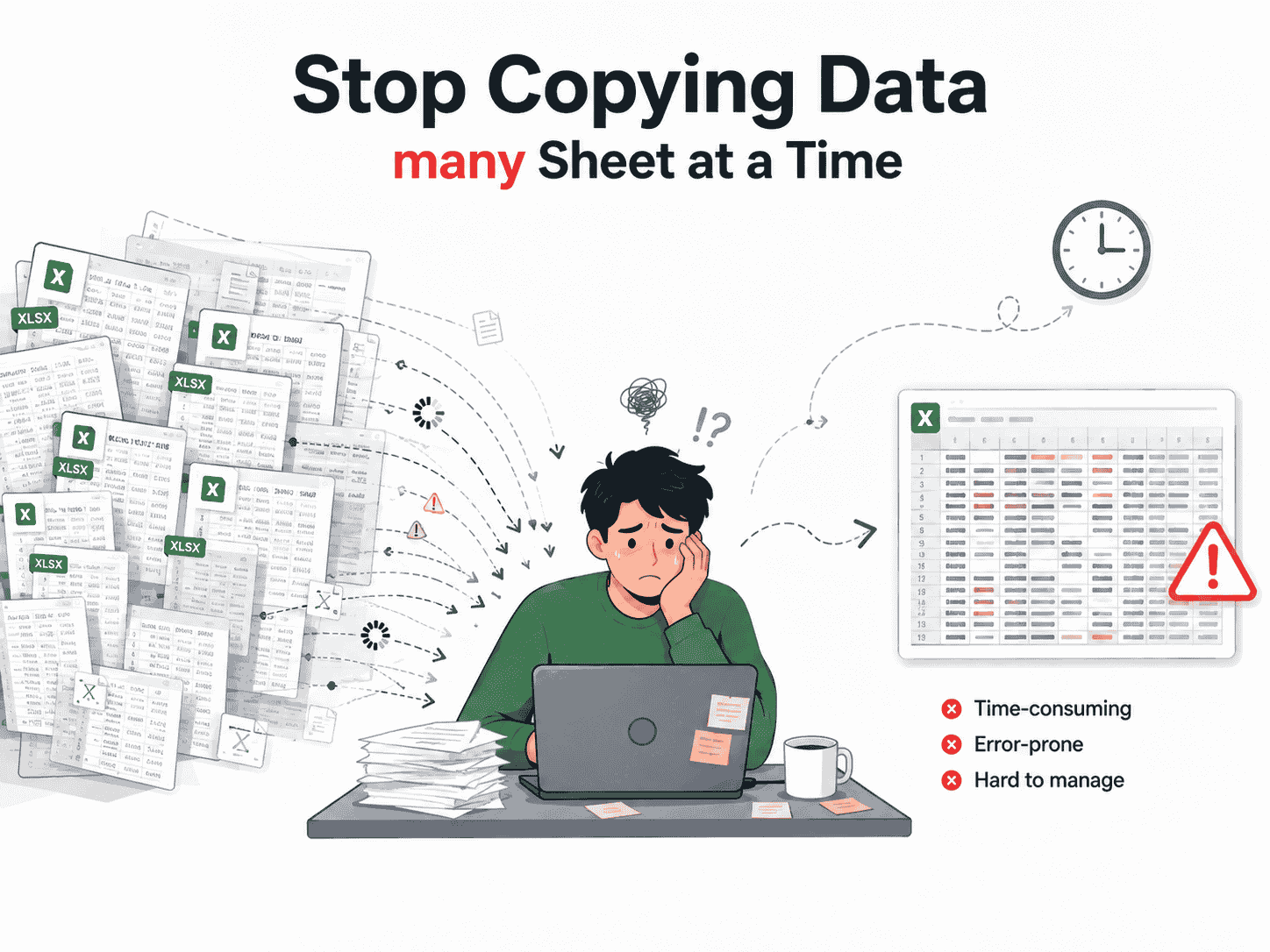
Stop Copying Data One Sheet at a Time
Manual consolidation becomes slow when reports arrive in different workbooks, each with repeated headers, slightly different column names, or many rows. It is also hard to spot a row pasted into the wrong place after the fact. A tool to merge Excel files gives users one clear process: collect the sources, check their order and structure, combine the content, then save a single result. This makes recurring spreadsheet work more consistent for people who manage operational data every week.
Built for Cleaner Spreadsheet Consolidation
These features help teams combine related spreadsheet sources with less manual cleanup and better review before export.
Combine Multiple Sources in One Session
Upload the Excel files you want to consolidate instead of moving data sheet by sheet. The workflow supports common spreadsheet sources such as XLSX, XLS, CSV, and JSON data, helping teams bring related exports together before they prepare a report or analysis file.
Choose a Merge Method That Fits the Data
Not every spreadsheet should be combined the same way. Keep worksheets as separate tabs when each source needs its own context, or append rows into one table when every source uses the same columns. This flexibility helps make the merged workbook more useful after export.
Set the Source Order Before You Merge
The order of incoming files can affect how a combined report reads. Arrange sources by month, region, department, or any other sequence before processing. A deliberate order saves time when a stakeholder opens the finished workbook and expects a logical flow.
Review Before Downloading
A quick preview can help you identify unexpected headers, blank columns, or source data that does not belong in the final output. Review the merge setup before exporting so you can correct an input file or adjust its position without starting your reporting task again.
Keep Work Ready for Follow-Up Edits
A merged spreadsheet is often the start of the next task, not the final destination. Download the result for filtering, formulas, charts, sharing, or import into another business system. The goal is to give you a practical file that is ready for normal spreadsheet work.
Use One Clear Browser Workflow
You do not need to teach every teammate a complex consolidation process. BankGPT presents the basic steps: upload, organize, merge, and download in a focused interface. It is useful for recurring tasks where speed matters but you still need a chance to inspect the inputs.
How to Use BankGPT's Merge Excel Tool

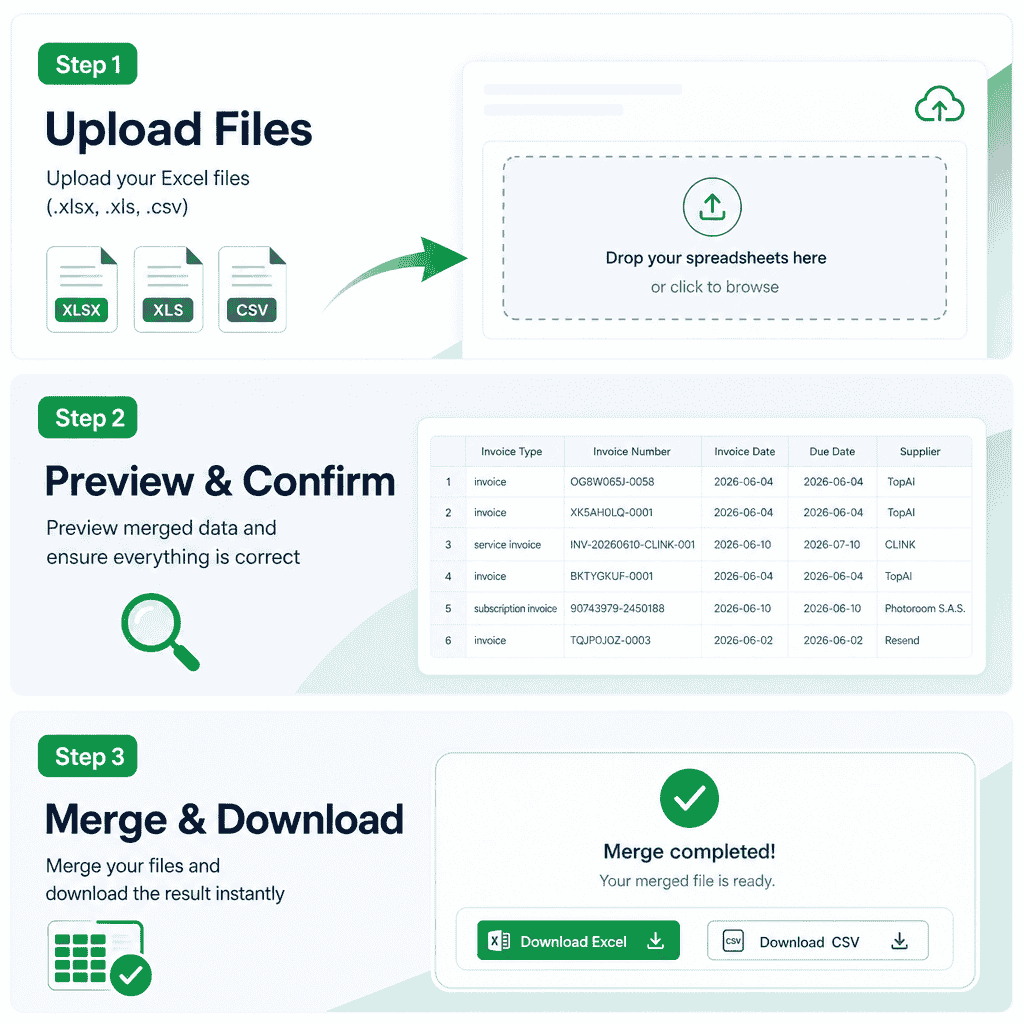
Upload the Excel Files You Want to Combine
Select or drag in the XLSX, XLS, CSV, or JSON files for your task. For the cleanest result, use source tables with matching headers when your goal is to append records into one sheet. If the files contain separate reports, keep their original sheet context instead.

Organize Files and Confirm Merge Settings
Arrange the uploaded sources in the sequence you want. Then select the available merge option that fits your data, such as keeping sheets separate or consolidating compatible rows. Check file names and table headers before you continue.

Merge, Review, and Download the Result
Select Merge Excel Files to create the combined workbook. Review the result when available, then download it for additional edits, reporting, or sharing. If something looks wrong, update the source order or replace the affected file and run the merge again.
Who Uses an Excel Merger?
Finance and Operations Teams
Teams can merge Excel files from monthly close folders, branch reports, expense exports, and operational trackers. One consolidated workbook makes it easier to run totals, compare periods, and prepare a packet for review without moving rows between many open windows.
Sales and Marketing Teams
Sales operations can combine regional pipeline exports, campaign leads, or event lists when the tables follow the same schema. Marketing teams can also merge spreadsheet data from several channels before cleaning records, finding duplicates, or building a performance dashboard.
Inventory, Logistics, and Procurement Teams
Inventory counts, supplier lists, shipment logs, and purchase records often arrive as separate Excel files. Combining them into a single working table can make it simpler to filter by SKU, location, vendor, or date and spot gaps that need attention.
Start Merging Excel Files Now
Bring scattered spreadsheet data into one organized result. Use BankGPT's Merge Excel tool to combine compatible XLSX, XLS, CSV, and JSON sources, review the setup, and download a workbook that is ready for the next step.
Start NowWhat Users Say About Merge Excel Files

"I receive one sales export from every territory at month-end. Before using this tool, I spent too much time opening files and pasting rows into a master sheet. Now I can merge Excel files in a defined order, check the headers, and start my review sooner. It has made the handoff to our reporting lead much smoother."

"Our team keeps supplier updates in separate workbooks. The ability to merge Excel files into one working list is helpful when we need to compare lead times and current stock. I still validate the data, but the initial consolidation takes far less effort than the old manual process."

"For recurring campaign reports, we need one spreadsheet with records from several channels. This Excel merger gives me a straightforward way to collect compatible exports before I remove duplicates and build a summary. The file-order step is especially useful for keeping the report easy to follow."

"I use the tool when branch teams send daily CSV and XLSX reports. Being able to merge Excel files before I run formulas means I can focus on exceptions rather than repetitive copy-and-paste work. It is a simple addition to our reporting routine."

"We often need to combine spreadsheets from multiple project owners. This workflow lets me prepare a single workbook for a meeting without asking each person to reformat their entire file first. I review the output after the merge and then share the version we need."

"The tool is useful for turning several inventory exports into one file for analysis. When the columns match, merging the data is much faster than handling each document separately. It helps our small team get to filtering and checking product movement sooner."
Merge Excel Files FAQs
Everything you need to know about combining spreadsheets into one organized workbook.