

Finance and accounting offices lose hours every month to a task that looks simple on paper: pulling numbers out of PDF bank statements and putting them into a spreadsheet. Month-end arrives with digital invoices, scanned receipts, and multi-page statements that all need to become rows in a financial model or an accounting system. Done by hand, that workflow is exhausting and unusually error-prone, because every decimal point, date format, and column alignment has to be re-checked by a tired pair of eyes.
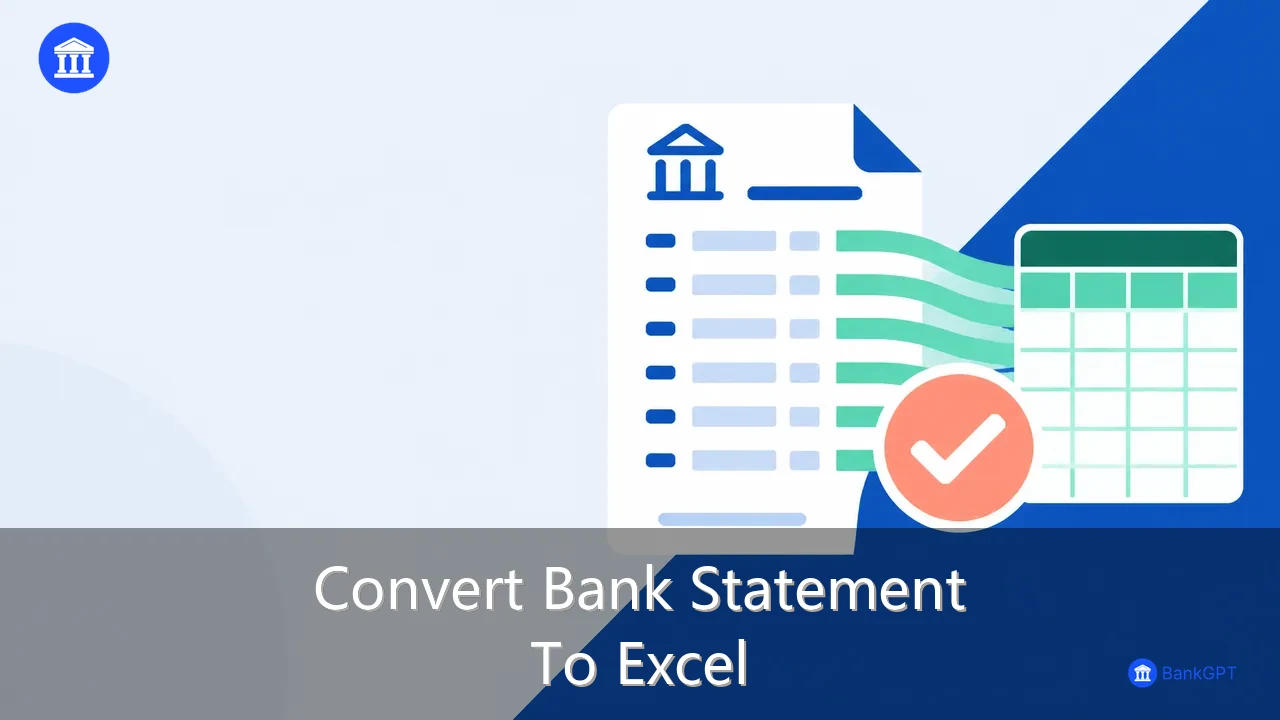
A modern bank statement PDF to Excel converter removes that friction entirely. BankGPT reads the document, reconstructs the table structure, and returns clean reconciled rows that are ready for Excel, CSV, or your accounting platform. This post walks through what the tool actually does, how to run a dependable workflow with it, and where it pays off most inside a busy office.
Why AI Bank Statement PDF to Excel Tools Matter in 2026 and Beyond

Every accountant, bookkeeper, and small business owner knows the monthly dread of the standard bank statement workflow. The moment you work with PDF files, copying values into a spreadsheet becomes a recipe for slow, error-prone cleanup. Numbers shift, columns misalign, and dates get reformatted into whatever the receiving software expects.
Now scale that up. An accounts payable team may receive hundreds of supplier invoices and bank records in PDF form each month, and every one of them has to be reconciled. Doing this manually takes days. Even the basic conversion tools built into mainstream software often miss table structure, leaving your staff cleaning up messy data instead of analysing it. This is where specialised conversion tooling changes the economics of the task, because a finance professional can bypass the manual bottleneck entirely rather than simply work faster at it.
The practical test is simple. If a tool cannot take a real multi-page statement and return a spreadsheet that reconciles on the first pass, it is not saving time, it is only relocating it.
What BankGPT Bank Statement PDF to Excel Converter Does Differently

Built on the AI document engine behind BankGPT, the converter is engineered specifically to take the friction out of financial document conversion. Rather than asking your team to spend hours copying and pasting, the system absorbs high-volume financial data and hands back a spreadsheet that lands clean on the first pass.
Here are the capabilities that make it practical for a working office.
High-Precision AI Extraction
Accuracy matters more here than anywhere else in finance, because one misplaced decimal point can throw off an entire audit. The converter uses machine learning models trained on diverse financial documents, and it recognises tables, headers, debits, credits, and running balances instead of treating the page as a flat wall of text. In practice that means the data arrives looking clean and correct rather than arriving as cleanup work.
Batch Upload and Processing
When you are managing dozens of client accounts or corporate statements, processing one file at a time is inefficient. The platform supports robust batch upload and processing, so you can drop multiple PDF statements into the system at once and let them convert in parallel.
Online Preview and Interactive Excel Display
Transparency and control matter during any document workflow. The tool provides original document and result online preview, which lets you compare your source PDF side by side with the converted output. The built-in online Excel display lets you review, inspect, and verify your formatted tables directly in the browser before you download anything.
Continuous Batch Online Merging
Do you need to combine statements from several months or several accounts into one master file? Continuous batch online merging lets you merge your processed data sets in the cloud with real-time viewing of results, so you never have to stitch multiple spreadsheets together by hand afterward.
Multi-Format Support and Flexible Downloads
Every organisation runs a different software stack. Whether your workflow needs Microsoft Excel, CSV, or another standard tabular format, multi-format processing and multi-format download options let you export the data in exactly the format your accounting software demands.
Comprehensive Document Management
Beyond one-off conversion, the platform works as a full document management hub. Asset management functions let you repeatedly manage, merge, and download previously processed files, so your conversion history stays organised and accessible whenever you need to revisit past financial records.
How to Use BankGPT Bank Statement PDF to Excel Converter: A Step-by-Step Guide

Getting Started with BankGPT
Step one is to gather the statements you need to process and head to the bank statement PDF to Excel converter tool. Upload a single PDF or drop in a batch of files at once, then let the system run its extraction pass. Once parsing completes, open the online preview to compare the source document against the extracted rows, and check the transaction table for anything that looks out of place.
When the table looks right, export it in the format your workflow needs. Excel is the default for most accounting teams, while CSV works well for bulk imports into reconciliation software. If you manage several statements that belong to the same client or period, use continuous batch online merging to combine them into one master file at this stage rather than later.
Best Practices for Accurate Bank Statement Extraction
Accuracy improves when you give the tool clean source files. Scanned statements are legible, but digitally generated PDFs from the bank itself parse more reliably because the text layer is already structured.
It also helps to keep one statement type per client folder, since batch processing relies on consistency. Review the extracted rows against the preview for every file before you import, especially on statements with unusual layouts or multi-column debit and credit entries. Finally, export in the same format your accounting platform expects every time. A repeatable export format is what turns a one-time cleanup into a permanent workflow.
Who Benefits Most from AI Bank Statement Conversion

The gains show up fastest where document volume and deadline pressure meet. Small business owners juggling their own books benefit from finishing month-end in an afternoon rather than a weekend. Bookkeepers handling several client accounts gain parallel processing, so a stack of statements becomes a batch job instead of a serial grind. Finance teams in accounts payable spend their reclaimed hours on analysis and advisory work rather than data wrangling.
For any of these teams, a dependable bank statement to Excel converter quickly pays for itself in reclaimed hours alone. The difference shows up in the second month, once the workflow becomes routine and nobody remembers what manual entry used to feel like.
If you want to see how this compares with other approaches, our best bank statement to Excel tool review for accountants breaks the main competitors down feature by feature.
Frequently Asked Questions
How accurate is the extraction?
The converter targets an accuracy rate of 99.99% on standard statement layouts, and it recognises table structure, headers, debits, credits, and balances rather than flattening the page into plain text. The online preview exists so you can verify accuracy on your own documents before anything reaches your ledger.
Can I convert many statements at once?
Yes. Batch upload and processing is a core capability, so you can submit multiple PDF statements together and let them convert in parallel.
Which file formats can I export?
Microsoft Excel and CSV are both supported, along with other standard tabular formats, so you can match whatever your accounting software expects to import.
Do I need to install anything?
No. Everything runs in the browser, which also makes the tool easy to hand to colleagues or external bookkeepers without provisioning software.
Can I combine several statements into one file?
Yes. Continuous batch online merging combines processed statements from multiple months or accounts into a single master file, with real-time viewing of the merged result.
Final Verdict
Office efficiency is not about working faster at manual data entry. It is about removing the work entirely and redirecting those hours toward analysis, forecasting, and client advisory. A capable bank statement PDF to Excel converter is the practical way to make that shift, delivering reliable extraction, parallel batch processing, a preview you can trust, and exports that land in the tools your team already uses.
If manual entry is eating your month-end, try the workflow above on one real statement and compare the result against your current process. The difference is usually visible within the first file.
Try the bank statement PDF to Excel converter from BankGPT to parse multi-page statements, batch-process client files, and export reconciliation-ready Excel and CSV data.
Written by Jordan Lee, an independent reviewer of banking tools and small business finance software.