
AI Invoice Data Extraction: How to Turn Invoices into Clean Excel Records
Invoice processing usually starts with a folder of supplier documents: digital PDFs, scanned pages, photographed bills, and email attachments. The information is already there, but it is not useful for bookkeeping or reporting until someone identifies the supplier, invoice number, dates, amounts, taxes, and line items. Copying those values by hand is slow, and it is the step where small mistakes quietly enter the books.
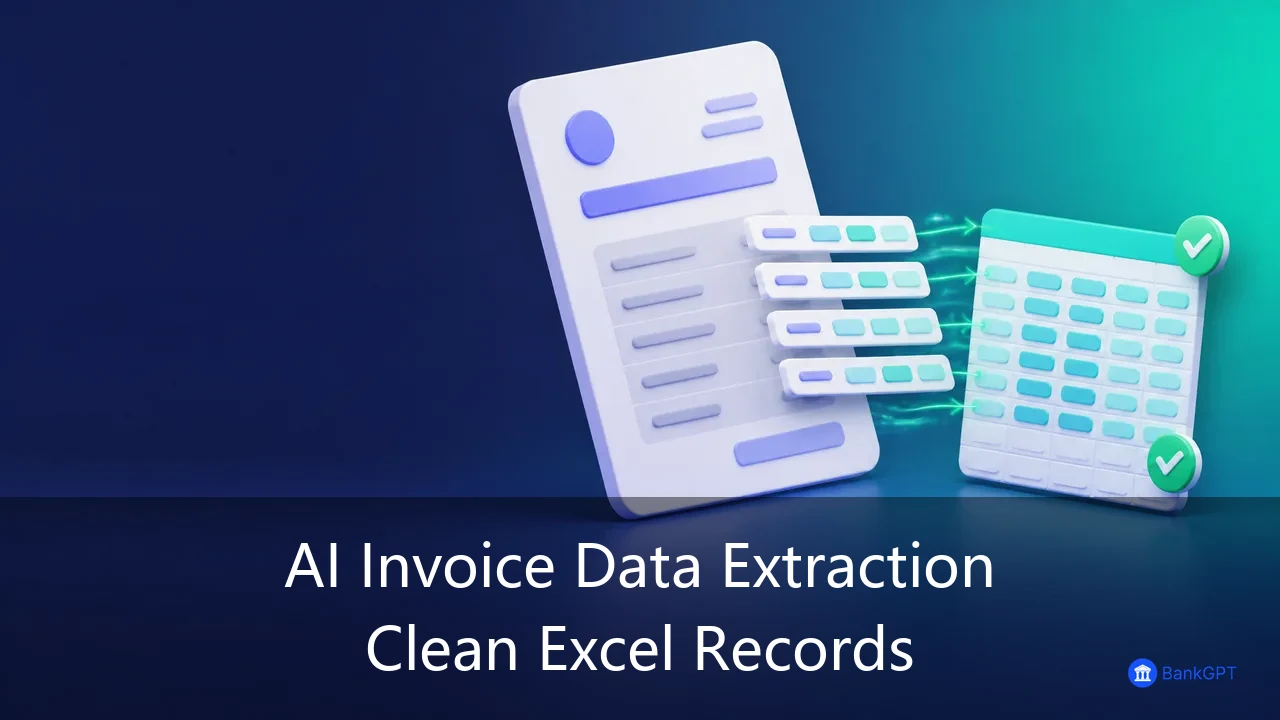
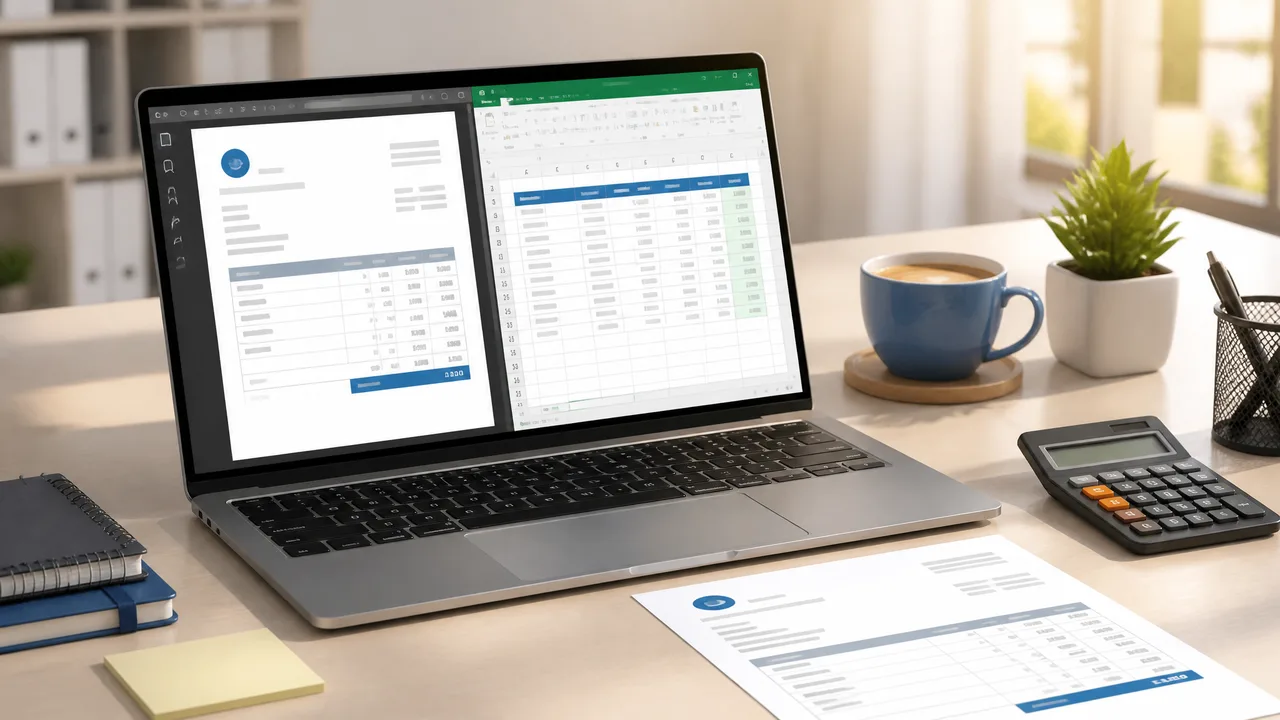
AI invoice data extraction changes that by turning invoice documents into structured fields and rows. Instead of retyping values into a spreadsheet, finance teams upload the documents, extract the fields they need, review the output, and export clean data that is ready to sort, total, and reconcile. BankGPT provides an online workflow for exactly this, so a team can move from invoice PDFs to editable Excel records without building a custom system or maintaining a template for every supplier.
Why AI Invoice Data Extraction Matters for Finance Teams
Manual invoice entry creates the same problems month after month. Different suppliers use different layouts. Dates arrive in different formats. Amounts are split across subtotal, tax, shipping, and total fields. Line-item tables contain merged cells, wrapped text, and rows that continue onto the next page.
Without consistent structure, reporting suffers. A finance team may know that an invoice exists but still cannot answer basic questions about supplier spending, upcoming due dates, or item-level costs, because the numbers live inside documents rather than in columns.
AI invoice data extraction addresses this by assigning every value to a consistent column. It also scales in a way manual entry does not. A batch of forty invoices takes roughly the same review effort per document as a batch of four, which is what makes month-end processing realistic for a small team without adding headcount.
What AI Invoice Data Extraction Captures
AI invoice data extraction identifies meaningful information inside an invoice and organizes it into defined fields. Typical invoice-level fields include the supplier name, invoice number, issue date, due date, purchase order reference, currency, subtotal, tax amount, and total amount.
The output is not simply recognized text. Each value is labelled so that a spreadsheet or a downstream system understands its role. For example, the system distinguishes between the invoice date and the due date even when both appear near the top of the document, which is exactly the kind of detail that manual copying gets wrong.

A practical extraction workflow also captures line-item details: product descriptions, quantities, unit prices, discounts, and line totals. Line-item extraction is the harder half of the job, because the tool has to preserve row and column relationships when descriptions wrap across multiple lines or a table continues onto another page.
In short, AI invoice data extraction turns a document-oriented task into a data-oriented task. The invoice remains the source of truth, while the extracted record becomes the version that can be filtered, calculated, reviewed, and exported.
Turning Invoices into a Structured Excel Register
The value of extraction shows up in the shape of the spreadsheet. A typical invoice register assigns every invoice to one row with consistent columns:
- Supplier name
- Invoice number
- Invoice date
- Due date
- Currency
- Subtotal
- Tax amount
- Total amount
- Purchase order reference
- Source file name
For item-level analysis, the workbook may contain a second sheet with one row per line item. Each row repeats the invoice number and supplier name so every item stays connected to its source document. That repetition looks redundant, but it is what lets you pivot spending by category, project, or period without going back to the PDF.
Standardize the column names early. If one export uses Invoice Date and the next uses invoice_date, later analysis becomes harder than it needs to be.
How to Use AI Invoice Data Extraction: A Step-by-Step Guide
A practical AI invoice data extraction workflow follows a repeatable sequence: upload, extract, review, validate, and export.
Getting Started with an Invoice to Excel Workflow
Start by bringing the invoice documents into the workflow. These may be digital PDFs, scanned invoices, or images, and a good workflow handles common document types without asking users to reformat every file first.
Batch upload is especially useful for month-end processing. Instead of opening each invoice separately, users upload a group of documents and process them together. This helps accounting teams, small businesses, procurement teams, and service businesses that receive invoices from many suppliers. If you work with recurring monthly batches, our guide to batch invoice processing covers that pattern in more detail.
Extracting the Fields That Matter
After upload, the system identifies the fields defined by the user or by a standard invoice schema. Common extraction targets include supplier details, invoice identifiers, dates, monetary values, and line items.
The value of AI invoice data extraction lies in working across layouts. Rather than relying only on fixed positions, modern systems use document understanding to identify fields by their meaning and surrounding context. That matters because two suppliers may place the invoice number in completely different positions while using the same label.
Reviewing and Validating the Results
Extraction should not end with an unreviewed result. Inspect the output, especially fields that affect payments, tax reporting, or supplier reconciliation. Reviewers should focus on high-impact values such as invoice totals, tax amounts, due dates, supplier names, and line-item amounts.
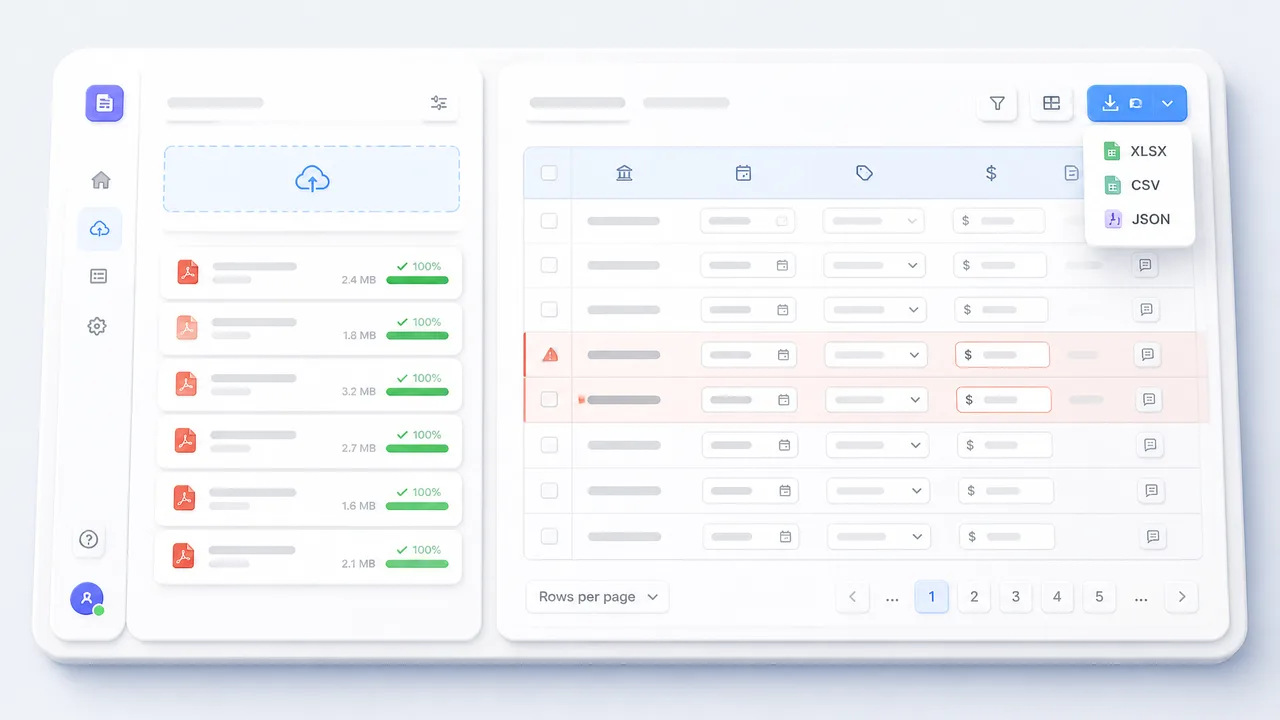
Validation then checks whether extracted values are internally consistent. The sum of line items should relate to the subtotal, and subtotal plus tax should relate to the total. Missing invoice numbers, invalid dates, duplicate supplier references, and mismatched amounts should be flagged for investigation.
Validation does not replace judgment. It highlights the records that need attention, which is especially valuable in a large batch because it directs review effort toward likely exceptions instead of requiring every field to be checked by hand.
Exporting to Excel
The final step is exporting structured data into a usable format. Excel is the common destination because it supports filtering, formulas, pivot tables, and easy sharing with accountants or managers.
The same structured output may also be exported as CSV or JSON. CSV is useful for imports into accounting or reporting tools, while JSON is useful for developers and data pipelines that need machine-readable records.
Where AI Invoice Data Extraction Fits
AI invoice data extraction is useful wherever invoice information has to move from documents into business systems. The most common scenarios are bookkeeping, accounts payable, expense tracking, procurement analysis, and month-end reporting.
Bookkeeping and Accounts Payable
Bookkeepers need invoice records that can be reviewed and recorded consistently. Extracted fields help create an invoice register with supplier names, amounts, due dates, and payment status.
Accounts payable teams can use the same data to prepare payment runs, identify overdue invoices, and reconcile supplier statements. The extracted record becomes the working dataset, while the original invoice stays available for reference.
Expense and Cost Tracking
Businesses that receive many supplier invoices can use extraction to track spending by supplier, category, project, or period. Line-item data makes this far more useful, because it shows not only the invoice total but also what was actually purchased.
A construction business may want to separate materials, labor, equipment rental, and delivery charges. A retailer may want to understand spending by product category. Structured line-item data supports both. Our walkthrough on extracting line items from PDF invoices goes deeper on that use case.

Month-End Reporting
Month-end processing often means collecting invoices from several sources and preparing them for review. Batch extraction builds a consolidated dataset faster than manual entry, so the finance team can check totals, identify missing documents, review unusual amounts, and prepare reports.
The goal is not to remove review entirely. The goal is to make review faster and more focused.
Recommended Tool: BankGPT
For teams that want a direct way to turn invoice documents into spreadsheet data, AI invoice data extraction from BankGPT is a practical option. The tool is designed to convert invoice PDFs into structured Excel output, supporting supplier details, invoice numbers, dates, taxes, totals, and line items.
BankGPT combines document conversion with an online editing and export workflow. Users upload invoices, process them into structured data, review the results in an editable table, and download the output for further use. That suits teams that need Excel data without setting up OCR software, templates, or a separate data-entry process.
The platform is particularly useful for businesses that receive invoices in different formats. Instead of forcing every supplier document into one fixed template, BankGPT focuses on extracting the information needed for a usable invoice dataset, which fits real-world processing where layouts vary but the underlying fields stay similar.
BankGPT also supports a broader document-processing workflow. Businesses already working with receipts, tables, PDFs, and spreadsheet data can use the same platform to move documents into structured formats, reducing the need to switch between separate tools for scanning, conversion, and cleanup.
Frequently Asked Questions
What fields can AI invoice data extraction capture?
Most workflows capture supplier name, invoice number, invoice date, due date, purchase order reference, currency, subtotal, tax amount, and total amount at the invoice level. Many also capture line items, including description, quantity, unit price, discount, and line total, which is what makes item-level reporting possible.
Can it handle scanned invoices and photos?
Yes. Scanned pages and photographed bills can be processed, although a text-based PDF or a sharp scan will always produce more reliable results than a blurry photo. When quality is uncertain, treat the totals and tax amounts as the fields to verify first.
Do I still need to review the extracted data?
Yes. AI invoice data extraction produces structured data, not finished bookkeeping. Approval, payment authorization, and supplier matching are business controls that still require defined rules. Review also catches the edge cases, such as unclear scans, unusual layouts, and ambiguous values, before they reach your accounting records.
How should I structure the export for analysis?
Decide before uploading whether you need one row per invoice, one row per line item, or both. Keep the source file name in every row so values can be traced back to the document. Standardize column names across exports so later reporting does not have to reconcile two naming conventions.
Is Excel the only export format?
No. Excel is the most common destination because it supports filtering, formulas, and pivot tables, but CSV is useful for importing into accounting or reporting tools, and JSON suits developers and data pipelines that need machine-readable records.
Final Thoughts
AI invoice data extraction gives businesses a practical way to turn invoice documents into structured, reviewable spreadsheet data. It reduces manual transcription, supports batch processing, and makes invoice information easier to analyze and export.
The best results come from combining extraction with clear field definitions, careful review, and basic validation checks. Define the schema first, test with a representative batch, and keep the source reference attached to every row.
With AI invoice data extraction, BankGPT offers an online workflow for converting invoice PDFs into editable Excel data, helping finance teams move from scattered documents to organized records. Start with BankGPT to upload invoices, extract the fields that matter, and build a cleaner invoice data process. If spreadsheets are the destination, our guide to converting PDF tables to Excel covers that path in detail.
Reviewed by Jordan Lee, small business owner and independent reviewer of banking tools and FinTech applications.