

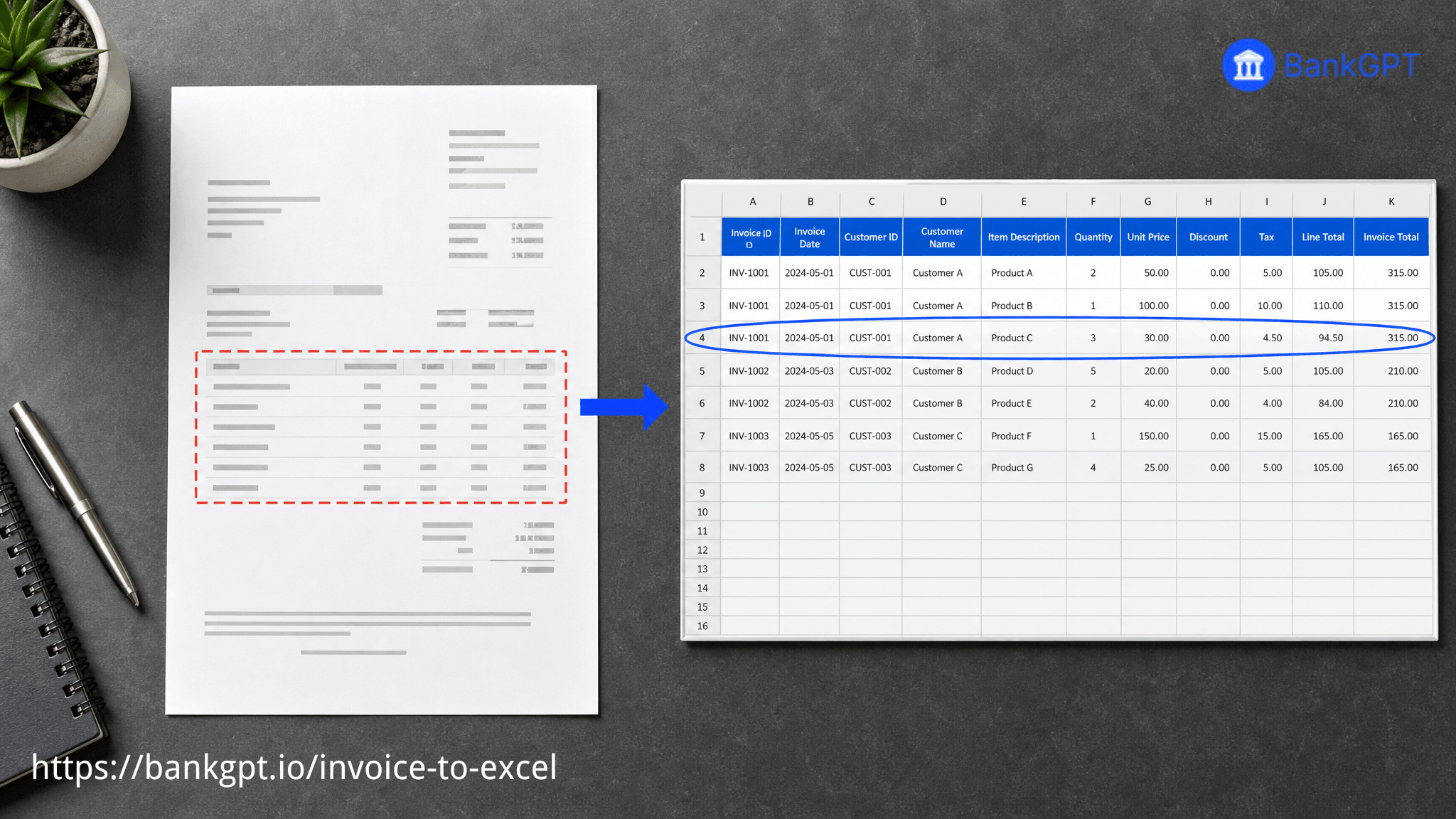
Monday morning, and an accounts-payable clerk opens a folder of 40 supplier PDFs. Each one needs its line items—description, quantity, unit price, tax—typed into the ledger before the monthly close. Retyping every row is slow, decimal slips are easy, and a single misaligned total pushes the reconciliation into the afternoon. The good news: you no longer have to do it by hand.
That's where a free online extract line items from PDF invoices tool comes in. Turn any scanned or digital bill into clean, filterable Excel rows instantly. The tool maps every line item—description, quantity, unit price, tax, and total—into separate columns, so your data is ready for analysis, not more data entry. No sign-up, no software to install, and nothing to pay for.
This guide compares the methods that actually hold up for getting invoice line items to Excel, walks through the fastest path from a folder of mixed bills to one clean sheet, and shows how an Invoice Line Item Extractor can take you from "a stack of PDFs" to "ready to reconcile" in minutes.

Why Getting Line Items Into Excel Matters
A grand total at the bottom of an invoice tells you what to pay. The line items tell you why. When each row lands in its own Excel column, you can sort by SKU, sum by tax code, or pivot by vendor without reshaping the data first. That distinction is what turns a pile of PDFs into something your ledger, expense system, or ERP can actually read.
A proper extraction should produce this column map:
| Invoice field | Excel column | Why it matters |
|---|---|---|
| Description | A | Filter by item or SKU |
| Quantity | B | Catch unit vs pack mismatches |
| Unit Price | C | Spot pricing drift across vendors |
| Tax | D | Reconcile by tax code or jurisdiction |
| Total / Amount | E | Tie out to the invoice grand total |
If your export collapses everything into one "details" cell, you have a tidy table but not a usable one. Once the rows are real rows, the downstream work gets dramatically easier: a VLOOKUP can match each line to your price list, a pivot table can show spend by category, and an auditor can trace any figure back to the original PDF in seconds. The real goal is rows you can filter and formulas you can trust.
The Real Cost of Getting It Wrong
Manual entry is not just slow—it is expensive in ways that show up after the fact. A clerk keying 40 invoices at two minutes each spends well over an hour, and that is before the corrections. One transposed digit on a $2,400 invoice can flip a vendor balance and send a payment to the wrong place.
Extraction errors also hide. A tax column that spilled into the total still looks plausible until someone pivots by jurisdiction and the rates do not add up. A miskeyed line can trigger a vendor dispute: the supplier swears they billed six units at one price, your ledger shows five, and nobody can tell who is right because the original row was never captured cleanly. Getting invoice line items to Excel accurately is cheaper than auditing the mess afterward—and far less stressful during a tax filing.
A Closer Look at Each Column (and Where It Breaks)
Each column has its own failure mode, and knowing them helps you judge an extraction at a glance.
- Description (A). Free text is where wrapped lines cause trouble—one item whose name spilled to a second line can split into two rows. A good extractor keeps the wrapped text in one cell.
- Quantity (B). Watch for "pack of 12" or fractions. If the number stays numeric, your sums and VLOOKUPs work; if it turns into text, they silently break.
- Unit Price (C). Currency symbols and thousand separators should remain numeric, not labels. A price stored as text will not add up, and the error is easy to miss.
- Tax (D). Know whether your system expects a percentage or an amount. Mapping tax to its own column lets you choose, rather than being stuck with whatever the PDF printed.
- Total (E). This is your tie-out check: it should equal the sum of the line totals. If it does not, a row slipped, and you catch it before the close.
Three Ways to Extract Line Items from PDF Invoices
| Method | Best for | Where it breaks |
|---|---|---|
| Manual copy-paste | One occasional bill | Slow, error-prone at batch size |
| Excel PDF import | Clean, single-table digital PDFs | Scans, multi-table, odd layouts |
| Free online AI (BankGPT) | Batches, scans, mixed formats | Needs a browser session |
Method 1 — Copy and Paste by Hand
Open each PDF, highlight the table, paste into Excel, then repair the columns that spilled. It works on any file and costs nothing but time. The catch: a 40-invoice week is several hours of typing, and one misplaced decimal breaks the tie-out. Fine for a single bill now and then; it does not scale to a batch.
Method 2 — Excel's Built-in PDF Import
Modern Excel can pull a table straight from a PDF through Data → Get Data → From File. For clean, single-table digital invoices it often does the job. The limit appears with real-world files: scanned PDFs, multi-table layouts, or bills where the tax line sits under a subtotal. Excel reads what it sees as one block, and you end up re-splitting columns by hand—defeating the purpose.
Method 3 — Free Online AI Extraction
BankGPT reads each invoice in the browser, detects the line-item table, and maps every row into the right column. It handles scanned PDFs and phone photos through OCR, merges a batch into one workbook, and asks for no account. For the "I have 80 mixed invoices and need them in Excel by lunch" case, this is the path that removes the manual step entirely.
If you process one or two bills a week, copy-paste is tolerable. If your invoices are uniformly clean digital PDFs, the built-in Excel import is a reasonable first try. The moment you face a batch, scanned files, or vendors who each format differently, a PDF invoice to Excel tool powered by AI wins on time and accuracy. More than ten invoices, or any scans in the mix, skip manual entry and let the engine do the reading.
How to Extract Line Items from PDF Invoices into Excel Free Online
The whole flow is three steps any member of the AP team can run and reuse.
- Step 1 — Drop Your Invoice Files. Pull the month's billing folder into the upload area. PDFs, PNGs, and JPEGs all go in together—up to 100 files per batch. No need to separate scanned from digital; the engine treats a phone snap of a paper receipt the same as a portal download.
- Step 2 — Let the Engine Map Each Row. As each file is read, the table lights up and a live preview shows which field landed in which column. If a heavily merged cell throws a row off, you can nudge the column break in the browser before saving—no restarting the batch for one odd file.
- Step 3 — Download and Reconcile. Save as XLSX for Excel or CSV for a flat ERP import. A $2,400 invoice with six line items arrives as six spreadsheet rows, each field preserved—not a collapsed summary. Tip: open the export once and check the grand-total column ties to the sum of your invoice totals before you send the close.
Ready to try it? The Invoice Line Item Extractor runs free in your browser, no sign-up required.
Common Line-Item Problems (and How to Avoid Them)
- Merged header cells. A vendor nests the tax column under a subtotal. A good extractor follows ruling lines and spacing, not just position, so the tax still lands in its own column.
- Scanned or crooked PDFs. OCR reads the image before export, so text locked inside a scan becomes sortable. Crooked angles are corrected during recognition rather than passed through as garbage.
- Multi-page invoices. Page two of a bill should continue the same table. Map by row continuity, not by page, so a two-page invoice does not split into two broken blocks.
- Mixed formats in one batch. One supplier emails crisp PDFs, another faxes a scan. Batching them together only works if the tool adapts per file instead of applying one template to all.
- Currency and date drift. A vendor bills in EUR with dates formatted day-month; your sheet expects USD and month-day. Preserve the original symbols and formats on export, then convert in Excel, so a recognition step never silently rewrites a value.
Each of these is exactly where manual paste and basic PDF import fall apart—and where the column map above stays intact.

Keeping Rows Aligned Across a Batch
When you merge dozens of invoices, alignment is the real test. The rules that keep it clean:
- Keep column order fixed across every file (Description → Quantity → Unit Price → Tax → Total).
- Stamp each row with its source filename or vendor name so rows stay distinguishable after the merge.
- Preserve number formats—leading zeros on invoice IDs and percentage signs on tax rates should survive the export.
- Preview before download; fix the one odd file in-browser rather than re-running the whole batch.
- Confirm the tax column is numeric. If tax arrived as text, a quick format fix restores the totals.
Follow those and a 100-invoice batch exports as one workbook you can sort, filter, and reconcile the same afternoon.
Pre-Flight Checklist Before You Batch
Run through this in under a minute before you hit convert:
- Filenames carry vendor and date so rows stay traceable.
- Scanned files are legible—if a human can read it, the OCR can.
- You know your target columns (Description, Quantity, Unit Price, Tax, Total).
- You have picked XLSX (review) or CSV (ERP import) for the destination.
- Someone will open the export once to confirm the totals tie out.
That five-point check is the difference between a batch you trust and a batch you re-do.
Frequently Asked Questions
Does the extractor capture line items or just the total?
It captures line items. Each row of the original bill becomes its own spreadsheet row, with description, quantity, unit price, and tax in separate columns. You get the breakdown, not a collapsed total.
Can it read scanned PDF invoices and photos?
Yes. OCR pulls text from scanned PDFs and images of paper bills, then arranges it into a grid before export. A crinkled or angled receipt is treated the same as a digital file.
Will the columns stay aligned if my vendors use different layouts?
They should. The engine detects tables per file and maps fields by structure, so a tax column on the far right of one invoice and nested under a subtotal in another both land in column D. Preview the grid and adjust if a merged cell slips.
Do I need to train the tool on my invoice format?
No. It adapts to different vendor layouts without templates or setup. Drop the files and the extraction runs; there is nothing to configure first.
What format does the output come in?
XLSX by default, with CSV available for flat ERP or accounting imports. Both keep headers intact so the import screen reads column names without manual mapping.
Is my invoice data kept private?
Files move through encrypted channels and are cleared from the server when the session ends. The conversion runs inside a private browser session, so vendor terms, pricing, and payment details stay within it rather than being stored or reused.
Can it handle a batch of 100 invoices from different vendors at once?
Yes. The batch pipeline opens each file, finds its table, and merges everything into one workbook with consistent columns and rows tagged by vendor, so a 100-invoice month exports as a single sheet you can sort and reconcile.
How fast is batch conversion?
Speed depends on file complexity and your connection, but a typical batch of dozens of mixed invoices processes in well under a few minutes. The engine runs in the cloud, so your machine stays free, and the preview updates file by file so you can inspect results before the full download is ready.
From Sheet to Insight: What to Do Once the Data Is in Excel
Having invoice line items in Excel is the start, not the finish. With clean rows, build a pivot table to show spend by vendor or category and spot the account that quietly grew. Drop the totals next to your purchase orders to catch a billed quantity that exceeds what was ordered. Filter by tax code to pre-check a filing before the deadline. Layer the cleaned data into a monthly dashboard and the trend lines reveal a vendor raising prices or a category creeping past budget—signals that never surface from a stack of PDFs. None of this is possible from a collapsed total—it only works because every line item sits in its own row. That is the real return on getting the extraction right the first time.
XLSX or CSV? Picking the Right Export for Your System
Both formats carry the same columns; the choice depends on what consumes the file. XLSX is the default for Excel, Sheets, and LibreOffice, and it keeps formatting, multiple sheets, and wider compatibility for a human to review. CSV is the better fit when the destination is an ERP, an accounting import screen, or a database that expects a flat file—headers stay intact so the import reads column names without manual mapping. If you are not sure which your system wants, export XLSX first, open it to confirm the rows look right, then save a CSV copy for the upload. Either way, the line items land in the same columns.
Start Extracting Line Items Today
You don't need to spend another afternoon retyping invoices. Pick the method that matches your volume and file types, run the pre-flight checklist, and let the engine handle the reading. Clean rows beat a clean total every time. When you're ready to stop manual data entry for good, try BankGPT's free Invoice Line Item Extractor. It extracts every line item from your PDFs, maps them into perfect columns, and exports a clean spreadsheet your accounting system can actually use.
Written by the BankGPT Finance Team, who build free invoice and document tools for accounting and AP teams.