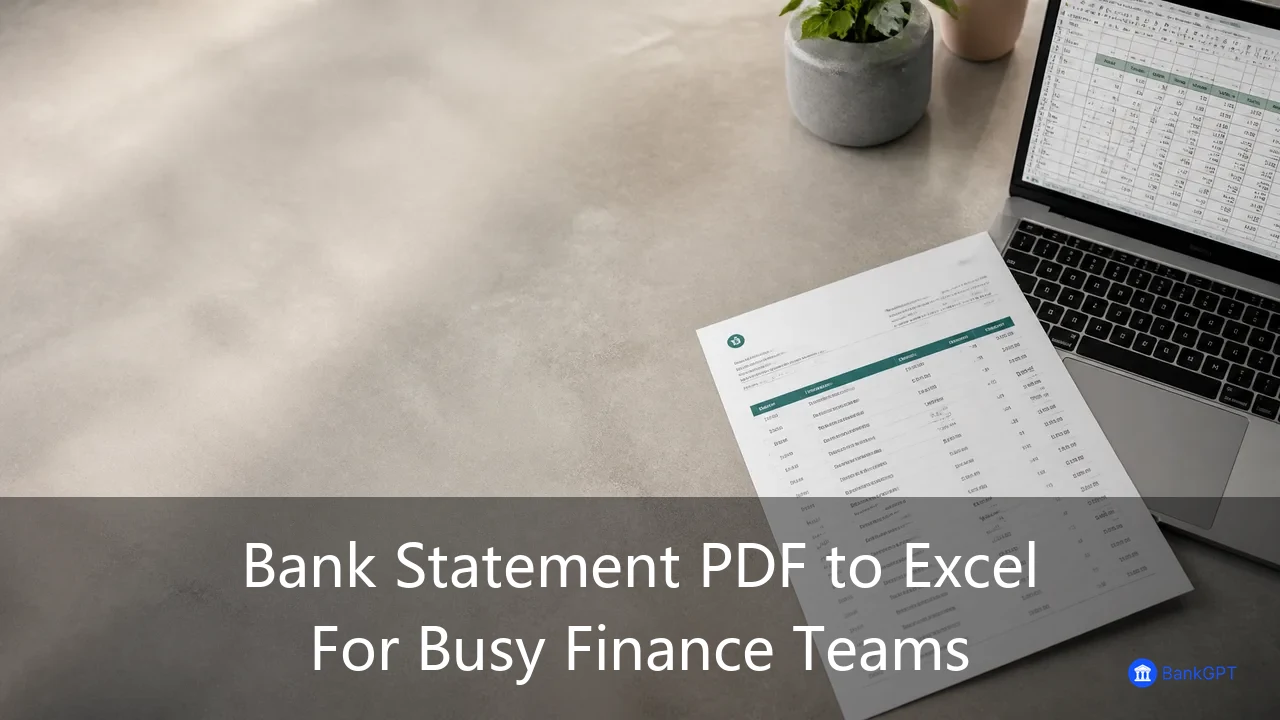

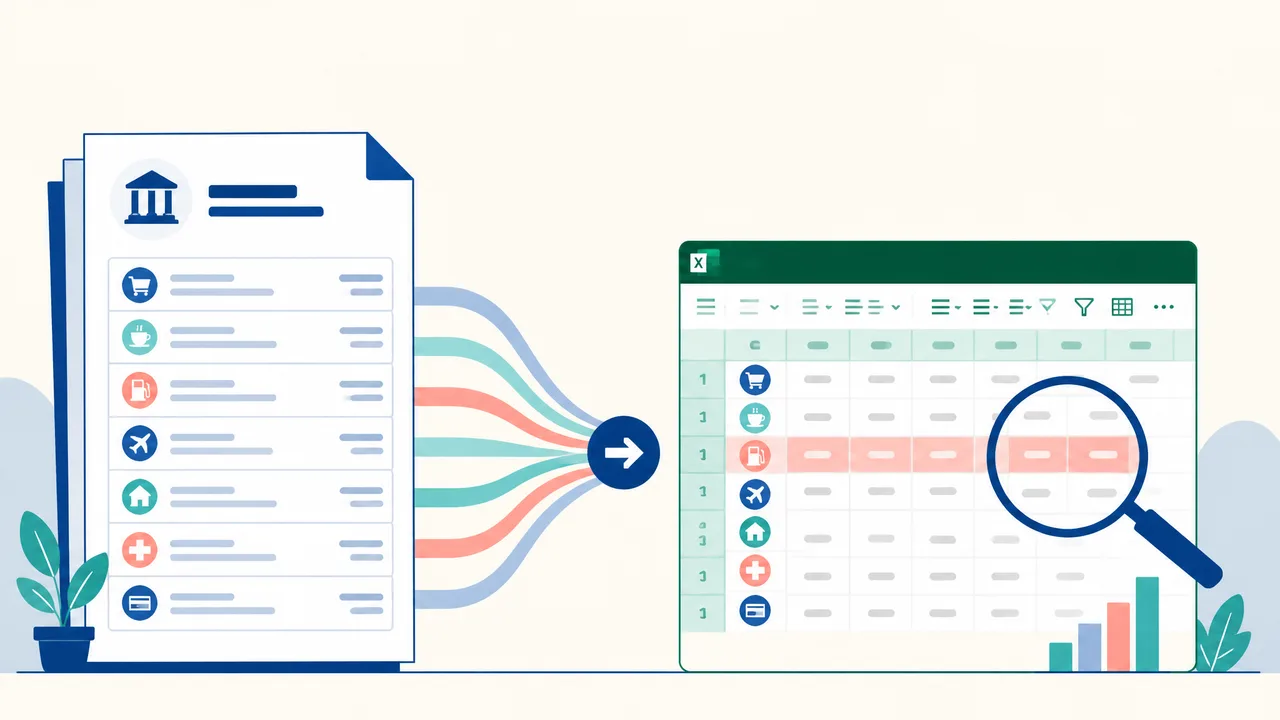
Late at night, a multi-page PDF bank statement is still sitting open on your second monitor while you retype columns of numbers into a spreadsheet. Anyone who closes the books, prepares tax records, or runs a small company knows this routine. Banks lock transaction history into fixed-layout PDFs, and for many corporate, holding, suspense, and international accounts there is no clean CSV download at all. Even when a statement looks tidy on screen, one copy and paste can scramble the rows beyond recognition.
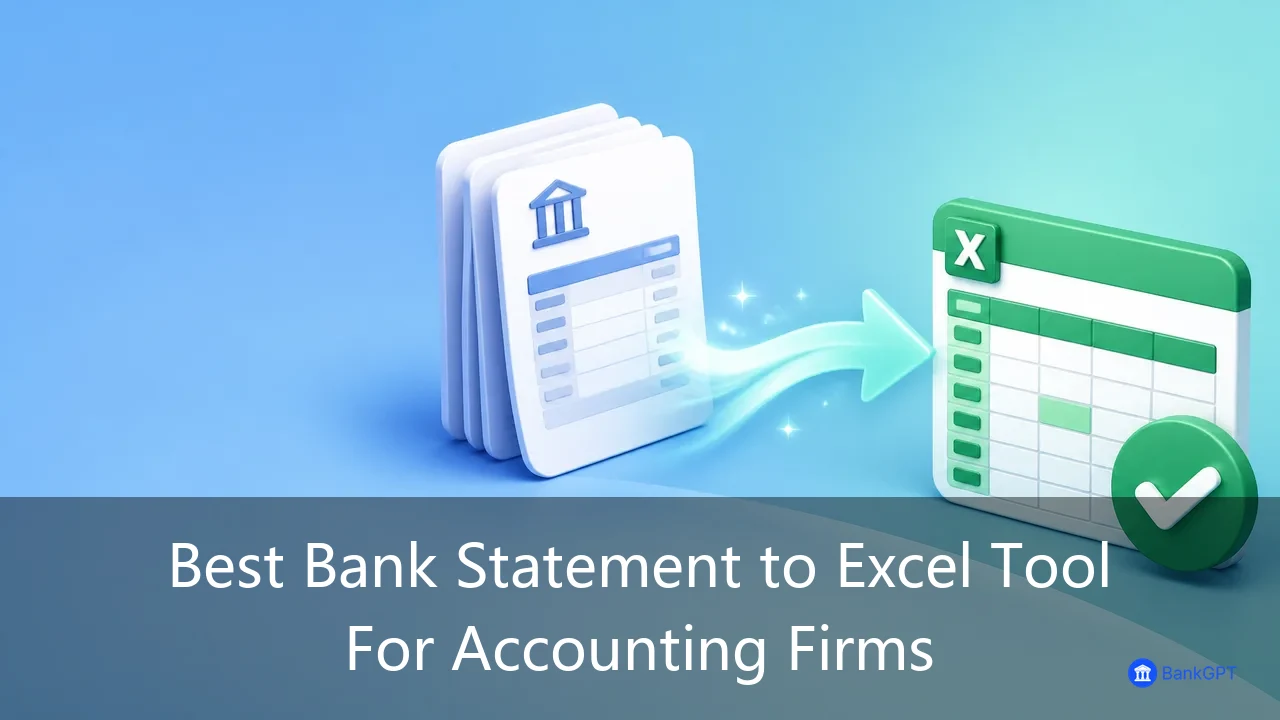
That is the gap a dedicated bank statement to Excel converter is built to close. This guide compares every practical way to convert bank statement to Excel, explains why the manual methods break down, and lays out a repeatable workflow with BankGPT that turns a batch of statements into reconciliation-ready rows in minutes rather than evenings.
Why Traditional Methods Fail to Convert Bank Statement Files Efficiently
Before automating anything, it helps to be precise about what goes wrong. Three structural problems show up again and again.
The Layout Shifting Nightmare
PDFs are built for fixed-layout visual presentation, not for data portability. When a transaction table crosses a page break, repeats its header, or wraps a long description onto a second line, a basic copy and paste destroys row alignment. Amounts slide into description columns, dates vanish, and decimal formatting drifts. Repairing those errors by hand usually takes longer than retyping the page, which is why so many teams bounce data through Word first just to strip stray line breaks.
No Native CSV Export from Many Financial Institutions
Corporate accounts, holding company structures, suspense accounts, and international banking portals often limit exports to a static PDF. With no CSV option, the finance team inherits a document that was never designed to be read by a spreadsheet.
Single-File Tools Do Not Scale
A basic parser or a general-purpose AI chat assistant can usually read one PDF. The workflow breaks down at month-end close, when the job is ten accounts across twelve months. Uploading and parsing one file at a time turns a mechanical task into an administrative bottleneck, and layout differences between banks make every new statement a fresh round of troubleshooting.
| Method | Works well for | Breaks down when |
|---|---|---|
| Copy and paste from the PDF viewer | Single-page statements with simple tables | Columns span pages, headers repeat, descriptions wrap |
| Column select and paste into Excel | One-off statements with very clean layout | Multi-column debit and credit layouts, scanned PDFs |
| Manual retyping | A handful of transactions | Any real monthly volume, and it invites transcription errors |
| Spreadsheet import from PDF | Digitally generated PDFs in a consistent layout | Scanned statements, changing bank templates, batch work |
| AI extraction tool | Multi-page, multi-bank, scanned or digital statements | Nothing material, provided you review the preview |
The lesson is simple. The method that survives real bank statements reconstructs a table, rather than copying pixels or text fragments.
Introducing BankGPT: The Modern Way to Convert Bank Statement PDFs
BankGPT is an AI financial toolkit built for small businesses, founders, and finance teams that do not want to spend month-end on data entry. Its converter applies machine learning and document parsing tailored to financial pages, so it recognises a transaction table instead of treating the page as a wall of text.
The result is a workflow where you convert bank statement PDFs in bulk and get back a spreadsheet that reconciles on the first pass. Everything runs in the browser, so there is no installation, no macro to maintain, and nothing to provision for a colleague or an external bookkeeper.
Core Features and Capabilities of the BankGPT Converter
When teams evaluate software to convert bank statement PDFs, they generally care about the same handful of things. Here is how the converter handles each one.
Batch Upload and Processing
Batch upload lets you drop dozens of PDF statements from different banks, months, and accounts at once, then run a single conversion pass across the set. Instead of babysitting a queue of single-file uploads, you start a job and come back to finished output.
High-Accuracy Extraction
Financial data tolerates no ambiguity, because a single misplaced decimal can send a reconciliation off course. The engine is trained on a wide range of global bank formats and separates dates, descriptions, debits, credits, and running balances into their own columns, including the multi-column debit and credit layouts that defeat copy and paste.
Online Preview and Querying
Before you download anything, inspect the source document side by side with the parsed table. Confirm totals, search for a specific line item, and check that opening and closing balances agree with the statement. This review step is what makes a fast workflow trustworthy.
Continuous Batch Online Merging
Multi-month statements and multiple accounts for one entity rarely belong in separate spreadsheets. Continuous batch online merging combines processed statements into a single master dataset as you go, so the annual ledger is assembled during the process rather than stitched together afterwards.
Interactive Online Excel Display
Parsed rows appear in an interactive grid you can sort, scan, and organise in the browser, so the file that reaches your machine is already the version you approved.
Multi-Format Downloads
Every accounting stack expects something slightly different. The converter exports clean Microsoft Excel workbooks, CSV files for database and accounting imports, and structured JSON for teams feeding a downstream system.
Asset and History Management
Historical conversions stay archived in an asset library, where you can revisit, merge, and download previously processed files. That matters at audit time and the second time you need last year figures.
How to Convert Bank Statement to Excel: A Step-by-Step Guide
Getting Started with BankGPT
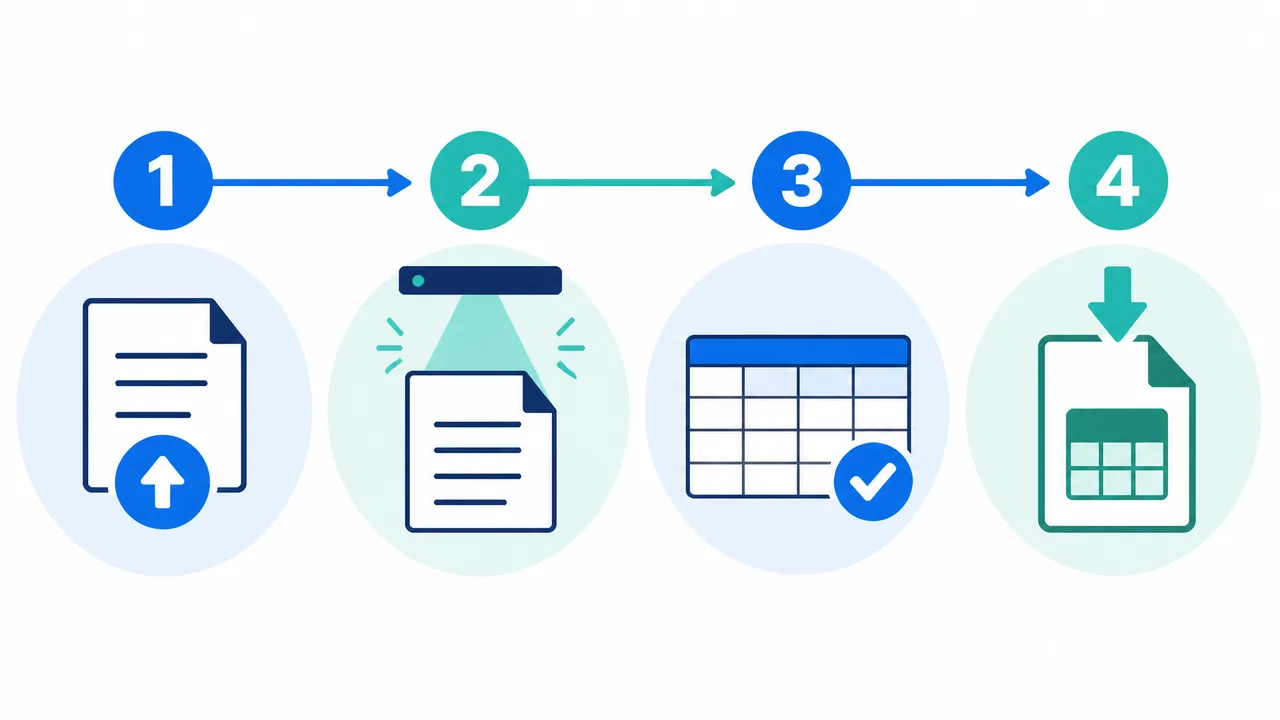
Start by collecting every statement you need for the period, then open the convert bank statement tool. Upload one PDF or drop in the whole batch for the accounts and months in scope. Once the job finishes, open the online preview and compare the extracted rows against the source pages, watching for anything unusual around page breaks and long descriptions.
When the table looks right, export it. Excel is the natural choice for analysts and accountants, while CSV is easier for a bulk import into accounting software. If several files belong to one entity or period, merge them at this stage rather than after download, so the master file is built once from verified data.
Best Practices for Accurate Bank Statement Extraction
Accuracy starts with good source files. Digitally generated PDFs parse most reliably because the text layer is already structured, while scanned statements should be spot checked against the original page.
Keep batches consistent by grouping statements from the same bank and account, since layout consistency helps any parser. Review the preview for every file, especially statements with credit and debit columns, currency symbols, or running balances, because subtle misreads surface there. Finally, settle on one export format and use it every month. A repeatable format is what turns a one-time cleanup into a permanent workflow.
Who Benefits Most from a Faster Bank Statement to Excel Workflow

The gains appear fastest where document volume meets a deadline. A small business owner can close the month in an afternoon instead of a weekend. Bookkeepers serving several clients gain parallel batch processing, so a stack of statements becomes one job instead of a serial slog. Accounting firms handling holding companies and multiple entities can merge months into a single ledger without rebuilding a worksheet by hand. Finance teams reclaim hours once spent on data entry and spend them on analysis.
For all of these teams, the value is not in working faster at typing. It is in removing the typing and trusting the rows that arrive.
Frequently Asked Questions
Is converting a bank statement to Excel accurate?
On standard statement layouts the engine extracts dates, descriptions, debits, credits, and balances into separate columns with high accuracy, including scanned statements. The online preview exists so you can confirm accuracy on your own documents before anything reaches your ledger.
Can I convert several bank statements at once?
Yes. Batch upload and processing are core capabilities, so you can submit many PDF statements together and let them convert as one job.
Which formats can I download?
Microsoft Excel, CSV, and structured JSON are supported, along with other standard tabular formats, so you can match whatever your accounting software expects to import.
Do I need to install software?
No. The converter runs in the browser, so you can share it with colleagues or an external bookkeeper without provisioning anything.
Can I combine several statements into one file?
Yes. Continuous batch online merging combines processed statements from multiple months or accounts into a single master file, with real-time viewing of the merged result.
What about statements that arrive as scans or photos?
Scanned and photographed statements are handled the same way as digital PDFs. Expect to spend slightly more time in the preview verifying faint or rotated pages, especially where a stamp overlaps the transaction table.
Final Verdict
Manual entry and brittle PDF workarounds do not disappear because you work harder at them. They disappear when the conversion step is automated and the review step is built in. A capable bank statement to Excel converter delivers batch processing, accurate table reconstruction, a preview you can verify, and exports that land cleanly in Excel, CSV, or your accounting platform.
If PDF statements are still costing you evenings, run your heaviest batch through the workflow above and compare it with your current process. The difference is usually visible in the first file.
Try the convert bank statement tool from BankGPT to turn PDF statements into ready-to-use Excel and CSV data.
Written by Jordan Lee, an independent reviewer of banking tools and small business finance software.