
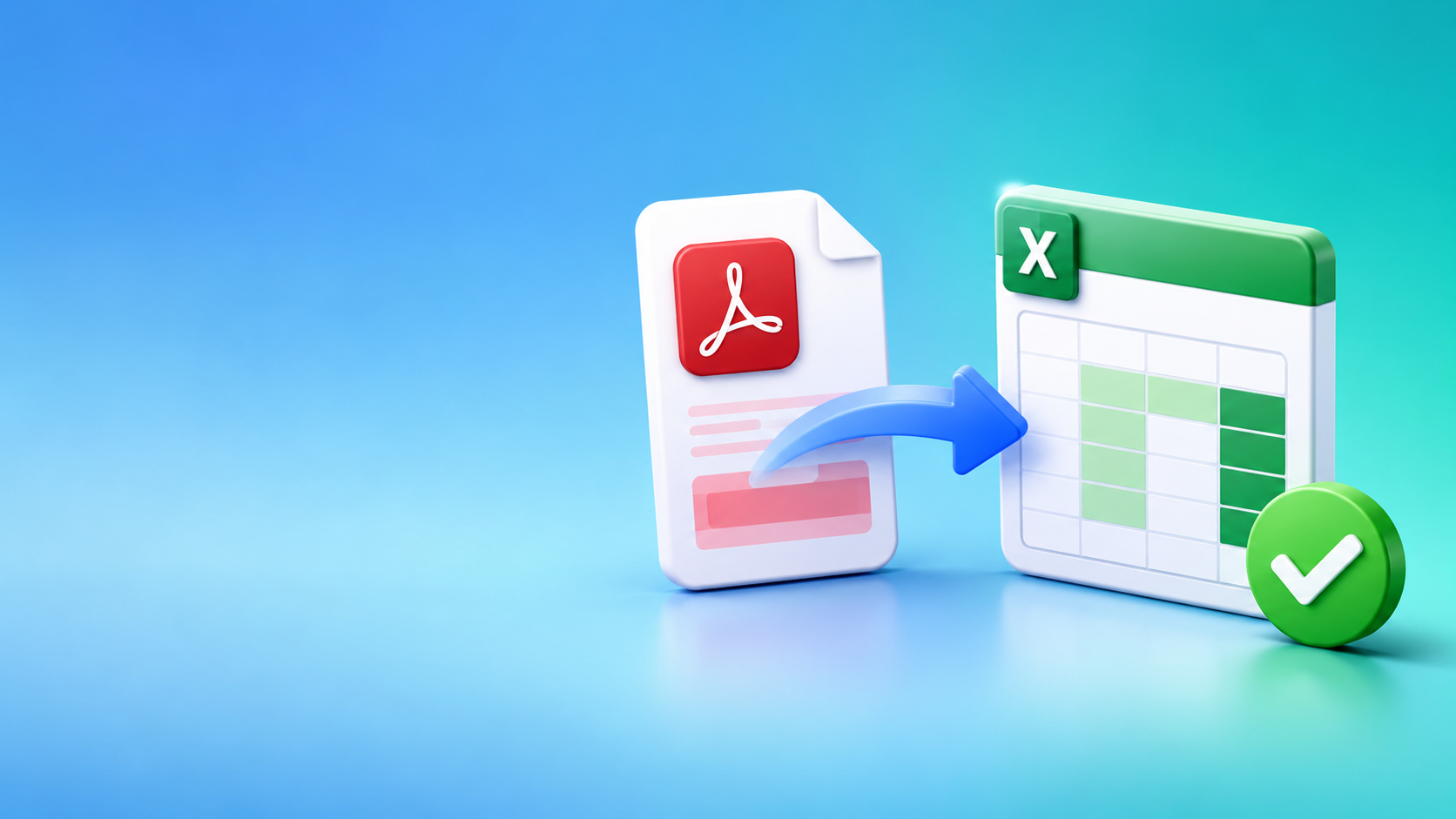
Manually copying rows from a PDF into a spreadsheet is slow, repetitive, and easy to get wrong. Whether you are working with bank statements, monthly revenue reports, annual budgets, invoices, or operational records, the real goal is usually the same: turn locked document data into a usable table. A reliable convert pdf to excel workflow lets you extract those tables, review them online, make edits, and download the final data in spreadsheet-ready formats.
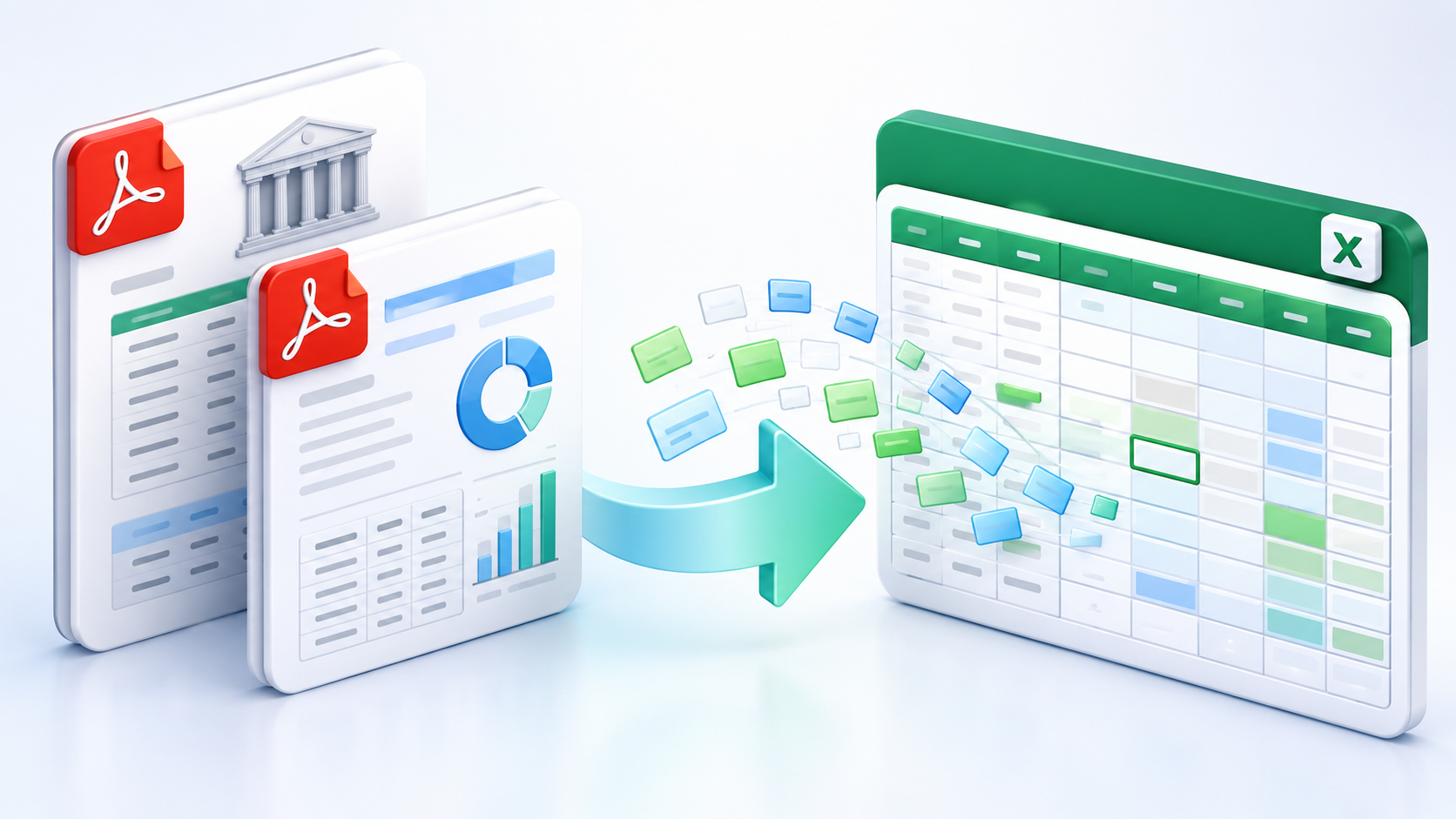
With BankGPT, you can transform document-based table data into an online Excel-style worksheet without rebuilding every row and column by hand. The tool is designed to recognize structured table content, organize it into a readable dataset, and help teams move from document review to analysis much faster.
Why Convert PDF to Excel?
PDF is excellent for sharing fixed-layout documents, but it is not ideal for sorting transactions, checking totals, filtering records, or reusing data in another system. A bank statement may visually contain a clean transaction table, yet the values are still difficult to analyze until they are converted into columns and rows.
A convert pdf to excel tool solves this problem by recognizing table-like data inside the document and rebuilding it as an editable spreadsheet. Once the conversion is complete, you can search values, update cells, filter records, validate totals, and export data for reporting or downstream processing.
The time savings become even more significant when there are many files. A task that could require several days of manual transcription and formatting can be processed in seconds to minutes per document, depending on file size and content complexity. Instead of spending hours repairing copied text, your team can focus on verification, reconciliation, analysis, and decisions.
Which PDFs Work Best?
The best documents for a convert pdf to excel workflow are PDFs where useful information is primarily displayed as clear, complete table data. Common examples include:
- Printed or exported bank transaction statements.
- Monthly company revenue and expense reports.
- Annual financial budgets and forecast schedules.
- Invoice lists, payment records, inventory reports, and operational registers.
- Reports exported from ERP, accounting, CRM, or business-management systems.
The PDF does not have to consist only of tables. Many financial documents include titles, headers, explanatory paragraphs, signatures, page numbers, and notes alongside their tables. The converter identifies the table-data portions and organizes them into an online Excel view while discarding information that is not relevant to the extracted dataset.
For example, a five-page monthly revenue report may begin with an executive summary and end with a short note from finance, while the middle pages contain a table with date, department, product category, revenue, and cost. Rather than manually copying the table and removing unrelated text, a convert pdf to excel process extracts the tabular information so it can be reviewed as structured data.
Supported Files and Batch Conversion
Although the core use case is PDF table extraction, the workflow accepts more than PDFs. You can upload PDF, DOC, DOCX, XLS, XLSX, CSV, TXT, PNG, JPG, JPEG, WEBP files, or one ZIP package containing multiple files. Each submitted document should include valid table data that you want to extract or structure.

This flexibility is useful when data arrives from different channels. You may receive a PDF statement from a bank, a Word report from a colleague, a photographed paper form, and a CSV export from a platform. Rather than using separate tools for each file type, you can send them through the same conversion workflow and review the results in an Excel-style interface.
Batch upload is especially valuable for recurring document workloads. Upload multiple files, submit them together, and let the system process each one. Depending on document size, conversion can take from a few seconds to several minutes. The convert pdf to excel process is far more scalable than manually entering similar tables one file at a time.
Start with the Convert PDF to Excel tool when you need to turn a set of reports, statements, or scanned table documents into downloadable spreadsheet data.
Prepare Documents for Better Accuracy
The output quality of any document-to-table workflow depends partly on the clarity of the source. Since the end goal is to extract a structured data set, use source documents where table rows, columns, headers, and values are clearly visible whenever possible.
For best results, submit documents with readable text, consistent column alignment, adequate image resolution, and complete table sections. Avoid heavily blurred scans, cropped rows, overlapping visual elements, or pages where table boundaries are difficult to distinguish. Clean source material improves both conversion speed and recognition accuracy.
If a document contains a large amount of narrative text mixed with only one important table, consider taking a screenshot or cropping the table area before uploading. The tool supports image uploads such as PNG, JPG, JPEG, and WEBP, so a clear table screenshot can be converted directly. This focused input reduces irrelevant content and gives the recognition process a cleaner target.
That said, you do not need to prepare every mixed document manually. The convert pdf to excel workflow can also handle documents that combine text and tables. It automatically identifies the relevant table portion and removes unrelated content from the spreadsheet result. Cropping is simply a useful option when you want to maximize speed and accuracy for complex pages.
How to Convert PDF to Excel
The workflow is intentionally simple, even when the input includes multiple file types or a ZIP package.
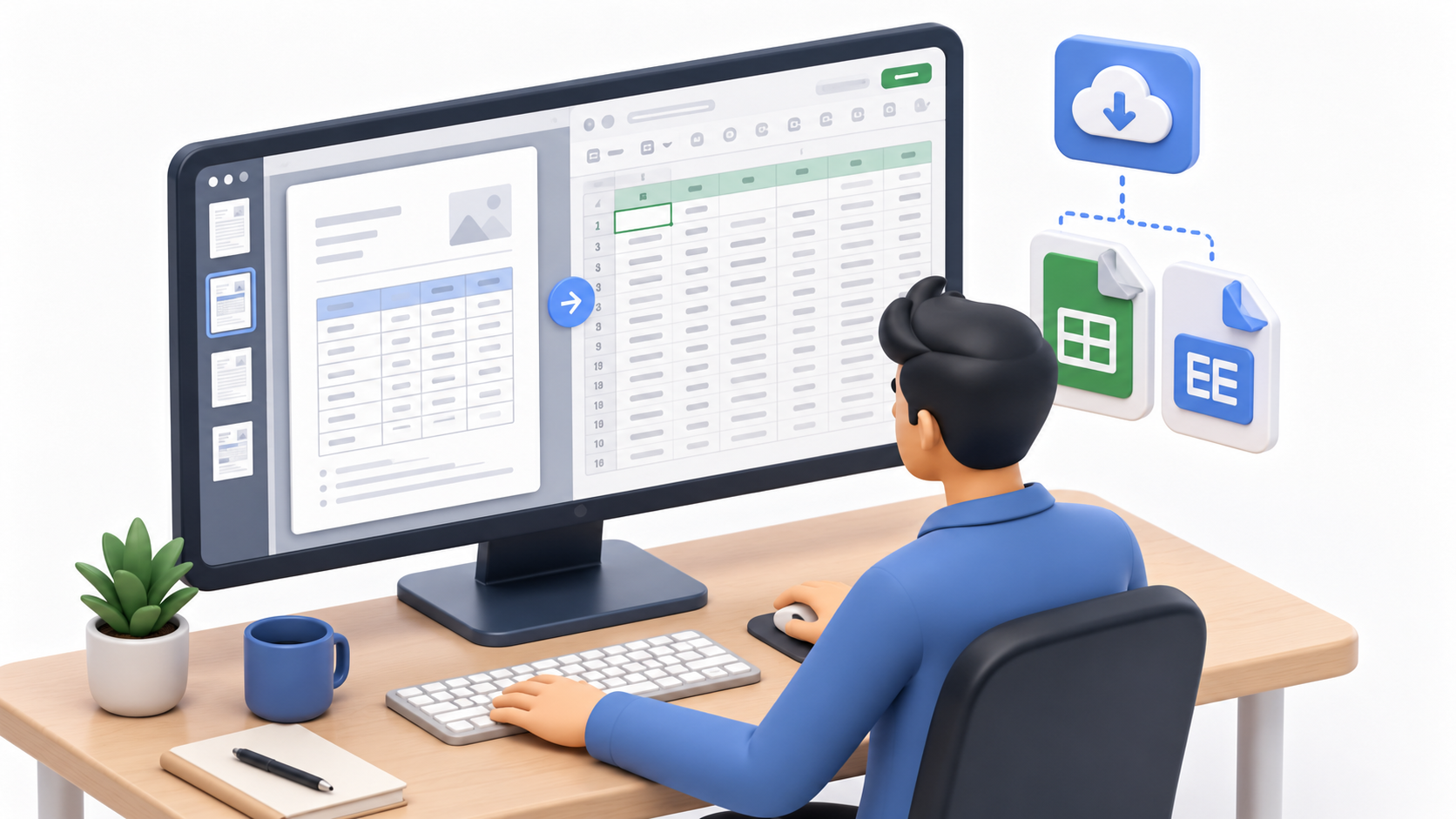
- Upload a PDF, DOC, DOCX, XLS, XLSX, CSV, TXT, PNG, JPG, JPEG, WEBP file, or a ZIP package. Ensure that the document contains valid table data.
- Click Start Conversion to submit the files for processing.
- Watch each document’s processing status in the left-side panel.
- Review the extracted data in the online Excel table on the right. Processed results update as documents are completed.
- Search, inspect, and edit the table online as needed.
- Download the completed results in CSV or XLSX format with one click.
This process gives you visibility while the files are being handled. Instead of waiting for an opaque batch job to finish, you can see individual processing progress and begin checking completed documents as their Excel tables become available.
Try the convert pdf to excel workflow for a bank statement or financial report first. Review the extracted columns against the original document, correct anything that needs adjustment, then export a clean CSV or XLSX file for the next stage of your work.
Advantages Over Manual Extraction
Manual transcription often appears straightforward at the start: copy a table, paste it into Excel, repair broken columns, remove page headers, and repeat. But the work becomes expensive at scale. Tables may span pages, copied cells may shift, negative values may lose formatting, and a small typing error can create a reconciliation problem later.
A convert pdf to excel workflow improves this process in several practical ways:
- Higher efficiency: Table recognition and formatting eliminate much of the repetitive copy-and-paste work.
- More consistent output: Extracted data is organized into rows and columns for review instead of relying on each person’s manual formatting method.
- Faster validation: Online preview lets you inspect the extracted table before downloading it.
- Editable results: You can find values and make necessary corrections in the online Excel view.
- Flexible export: Download structured results in XLSX or CSV format for Excel, reporting tools, databases, or other workflows.
- Batch-ready processing: Handle multiple documents in one submission instead of preparing each file separately.
The result is not only speed; it is a better division of effort. Let the system handle repeated table extraction, while people handle context, exceptions, and final verification. For large document collections, this can improve productivity dramatically compared with days of manual data preparation.
Common Business Scenarios
Financial teams can convert bank statements into Excel tables before matching deposits and withdrawals against internal records. Operations teams can turn supplier reports into structured data for inventory checks. Finance departments can extract budget tables from annual planning PDFs and compare departmental numbers without retyping every line item.
The approach also helps analysts who receive periodic reports in inconsistent formats. One month’s report may be PDF, the next may be a Word document, and another may arrive as a scan. By using the same structured conversion process, you can normalize those sources into spreadsheet data that is easier to query, compare, archive, and analyze.
For a recurring workload, create a simple quality-control habit: confirm that the source table is clear, upload all related documents in a batch, inspect the online preview, verify a sample of critical rows against the original, and then export the final CSV or XLSX. This provides speed without sacrificing control.
Frequently Asked Questions
Can a convert pdf to excel tool handle scanned documents?
Yes. The workflow accepts image uploads such as PNG, JPG, JPEG, and WEBP, so a clear screenshot or scan of a table can be converted directly. For best accuracy, use readable text, consistent column alignment, adequate resolution, and complete table sections.
What file formats can I upload besides PDF?
You can upload PDF, DOC, DOCX, XLS, XLSX, CSV, TXT, PNG, JPG, JPEG, and WEBP files, or one ZIP package containing multiple files. Each submitted document should contain valid table data you want to extract.
How long does PDF to Excel conversion take?
Depending on document size and content complexity, conversion can take from a few seconds to several minutes per document. The online interface shows each file’s processing status in a side panel, so you can watch progress and review completed tables as they become ready.
Can I edit the extracted data before downloading?
Yes. The extracted data is displayed in an online Excel-style table where you can search, inspect, and edit values before export. When the results look correct, download the completed file in CSV or XLSX format with one click.
Turn Documents into Usable Data
A PDF should not force you into hours of manual spreadsheet work. When a document contains meaningful table data, a structured convert pdf to excel workflow can extract it, organize it, and make it ready for review and download. Clear input documents, batch processing, online editing, and CSV/XLSX export make the process practical for both one-off reports and large recurring document sets.
Use the convert pdf to excel tool to convert your next statement, report, or table-heavy document into editable spreadsheet data. Visit BankGPT to explore more AI-powered tools for document processing, structured data extraction, and financial workflows.
Jordan Lee is a small business owner and independent reviewer of banking and FinTech tools. He writes practical, no-jargon guides to help founders spend less time on paperwork and more time growing their ventures.