
If you have ever opened a PDF bank statement and dreaded the hours of retyping transactions into a spreadsheet, you are not alone. Manually keying in hundreds of rows is slow, error-prone, and a poor use of any business owner's time. This guide shows you exactly how to convert a bank statement to Excel using AI, so the numbers land in a clean, reconcilable sheet in minutes instead of an afternoon. The workflow handles PDFs, scanned images, and even existing Excel files, and it pairs naturally with BankGPT's AI Bank Statement Converter.

Why Converting Bank Statements to Excel Matters in 2026 and Beyond
A bank statement is where your real financial story lives—every sale, fee, transfer, and payroll run. But that story is trapped in a fixed PDF that accounting software cannot read. Getting it into Excel is the first step to actually using the data, and the reasons keep getting stronger:
- Reconciliation: Matching transactions against your ledger is nearly impossible by eye. A spreadsheet lets you sort, filter, and flag mismatches in seconds.
- Tax preparation: Clean rows of income and expenses mean fewer scrambles when filing season arrives—and an audit trail that holds up.
- Cash-flow planning: Once the data is tabular, you can pivot by week, vendor, or category to see where cash actually goes.
- Loan applications: Lenders want structured history, not a 12-page scan. A tidy Excel export speeds up underwriting and improves your odds.
The catch is that the conversion step itself used to be the bottleneck. That is exactly what modern AI changes.
The Manual Way vs. The AI Way
Before diving into the steps, it helps to see what you are replacing. The table below contrasts typing it out by hand with letting an AI converter do the heavy lifting.

| Manual data entry | AI bank statement converter | |
|---|---|---|
| Speed | 1–2 minutes per transaction | Seconds for the whole statement |
| Accuracy | Typos, transposed digits, fatigue | AI extraction trained on real statement layouts |
| Format support | Whatever you can read | PDF, scanned images, Excel |
| Bulk handling | Painful, one row at a time | Batch hundreds of statements |
| Audit trail | Easy to lose the source | Each row links back to the original line |
When you convert a bank statement to Excel with AI, you are not just saving time—you are removing the single most common source of bookkeeping errors.
How to Convert a Bank Statement to Excel: A Step-by-Step Guide
The process takes about as long as it takes to make a coffee. Here is the full walkthrough.
Getting Started — What You Need
You only need two things: your statement file (PDF, JPG, PNG, or an existing spreadsheet) and a browser. BankGPT's converter runs entirely online, requires no sign-up for the core flow, and accepts statements from thousands of banks worldwide, so format quirks rarely trip it up. Files are encrypted on arrival and purged after processing.
Step 1 — Upload Your Statement
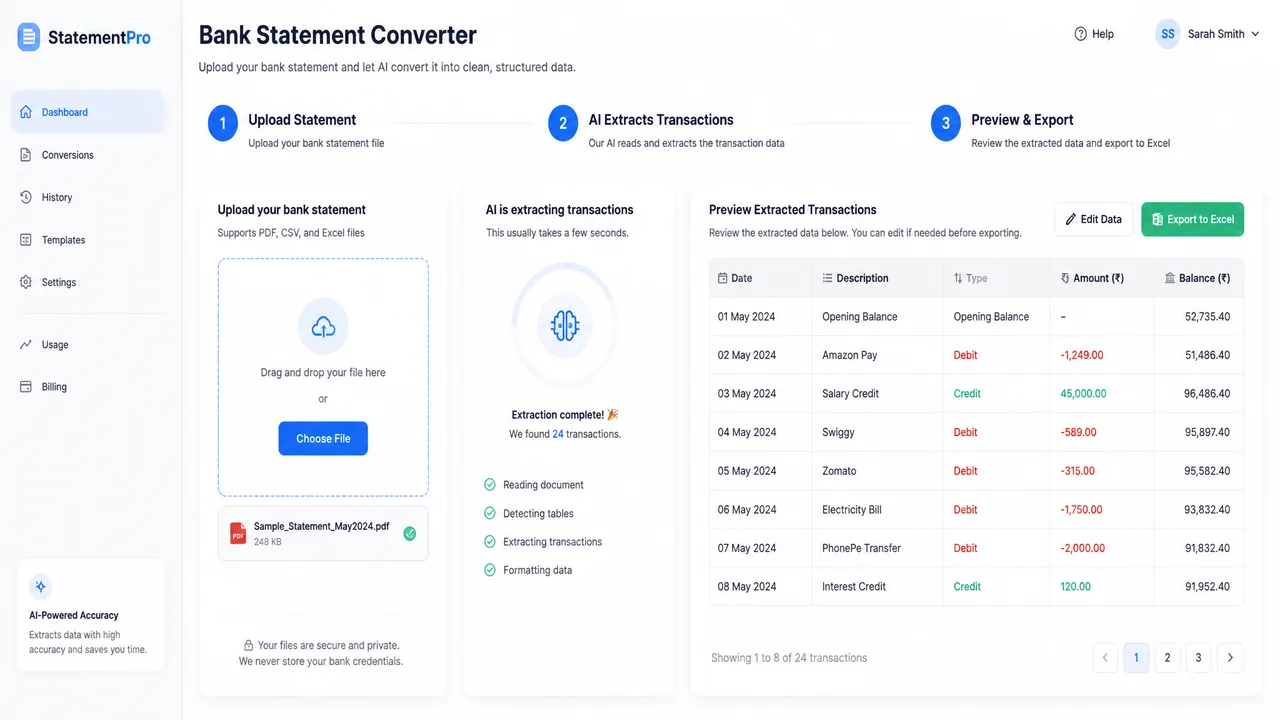
Drag your bank statement into the converter. It can be a digital PDF from your bank's portal, a scanned PDF, or a photo of a printed statement. The tool reads the document the moment it lands, so there is nothing to install and no template to configure.
Step 2 — Let the AI Extract Every Transaction
This is the part that used to eat your afternoon. The AI maps each line to date, description, amount, and running balance. It catches split lines, fee rows, and foreign-currency entries, then shows you a preview table you can scan before exporting anything. Because the model is trained on actual statement grids rather than generic documents, multi-page tables and running balances stay intact instead of breaking into fragments.
Step 3 — Review and Export to Excel
Skim the preview for anything odd—a misread merchant name or a stray fee—then choose your output. Beyond Excel (.xlsx/.xls), you can export to CSV, QBO, OFX, or JSON, which means the same parsed result feeds QuickBooks, Xero, or your own analysis without re-uploading. Column names stay identical across exports, so automated imports do not break between months.
Step 4 — Reconcile in Your Accounting Software
Open the Excel or QBO file in your ledger and match it against recorded transactions. Because every row carries its source date, description, and amount, spot-checks are quick and an auditor or lender can trace any figure straight back to the original PDF line.
Best Practices for Accurate Results
- Capture clear scans: Lay printed statements flat on a dark background with good lighting; the cleaner the image, the cleaner the extraction.
- Keep the full period: Upload the complete statement, not a clipped page, so the running balance reconciles end to end.
- Review before export: A 30-second glance at the preview prevents a bad row from propagating into your books.
- Reuse one parse: Generate Excel for yourself and QBO for the ledger from the same result to avoid double work.
PDF, Scanned Image, or Excel — What the Converter Handles
A common worry is that older or damaged statements will not read cleanly. The converter is built for exactly those cases:
- PDF bank statements: Digital text or print-and-scan PDFs are both accepted; the AI follows tables across page breaks.
- Scanned images (JPG/PNG): Printed grids become tidy rows even on low-quality or faded scans.
- Existing Excel files: Already-tabular data can be normalized and re-exported without re-keying.
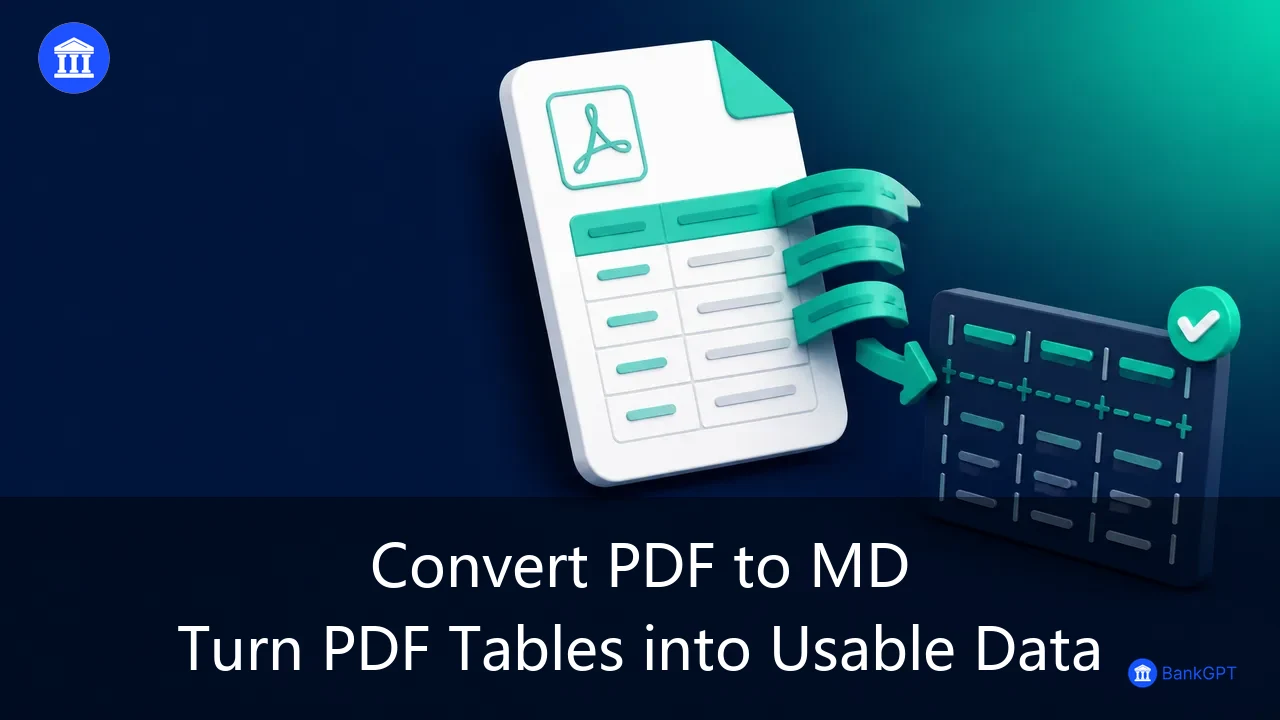
If your broader need is turning any document—not just statements—into a spreadsheet, the AI PDF to Excel Converter covers invoices, reports, and mixed file sets in the same flow.
Common Mistakes to Avoid
Even with AI, a few habits undermine the result:
- Clipping the statement: Uploading one page of a multi-page period breaks the running balance. Send the whole file.
- Merged or formatted cells: If you later edit the export, avoid merging cells—it complicates imports into accounting tools.
- Ignoring encoding: Non-English characters in descriptions should stay UTF-8; forcing a different encoding garbles vendor names.
- Skipping the preview: The fastest errors to fix are the ones you catch before export.
Who Benefits Most from Converting Bank Statements to Excel
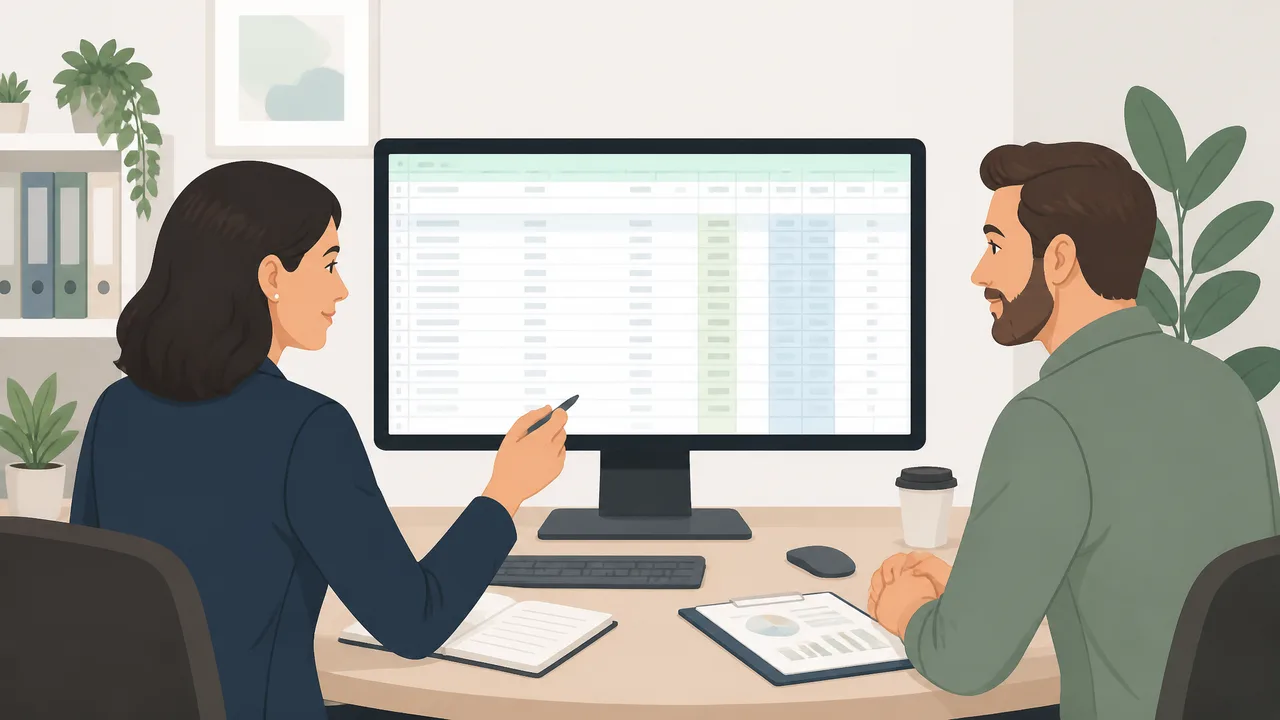
- Small business owners keep accurate records without hiring a bookkeeper, simplifying both taxes and day-to-day tracking.
- Accountants and bookkeepers reclaim billable hours previously lost to manual entry across many clients.
- Loan officers and credit analysts turn locked PDFs into decision-ready data in minutes.
- Auditors get consistent, traceable outputs that survive scrutiny.
If receipt tracking is also part of your workflow, our guide on using an online receipt scanner and making receipts for small business shows how to extend the same automation to expense documents.
Frequently Asked Questions
Can I convert a scanned (image) bank statement to Excel?
Yes. The converter uses OCR trained on printed statement grids, so a JPG or PNG of a printed statement becomes a clean Excel sheet—date, description, amount, and balance all aligned—even on damaged scans.
What export formats are available besides Excel?
You can export to CSV, QBO, OFX, and JSON in addition to Excel (.xlsx/.xls). The same parsed result regenerates any format, so you never upload twice.
Is my bank statement data secure?
Statements are encrypted in transit, processed on isolated servers, and purged after conversion. The core converter requires no sign-up, so sensitive files are never tied to a long-lived account.
How accurate is the AI conversion?
The model is fine-tuned on real financial layouts rather than generic documents, preserving debits, credits, dates, and reference numbers. Every row carries its source line for verification, and the preview lets you correct anything before exporting.
Conclusion
Learning how to convert a bank statement to Excel is one of the highest-leverage fixes for any small business's back office. Instead of retyping hundreds of rows, you upload, review, and export—then spend the saved hours on growth instead of data entry. Try the AI Bank Statement Converter on your next statement, and explore more workflows on the BankGPT blog.
Jordan Lee is a small business owner and independent reviewer of banking and FinTech tools. He writes from hands-on experience helping SMEs cut manual work and close their books faster.