
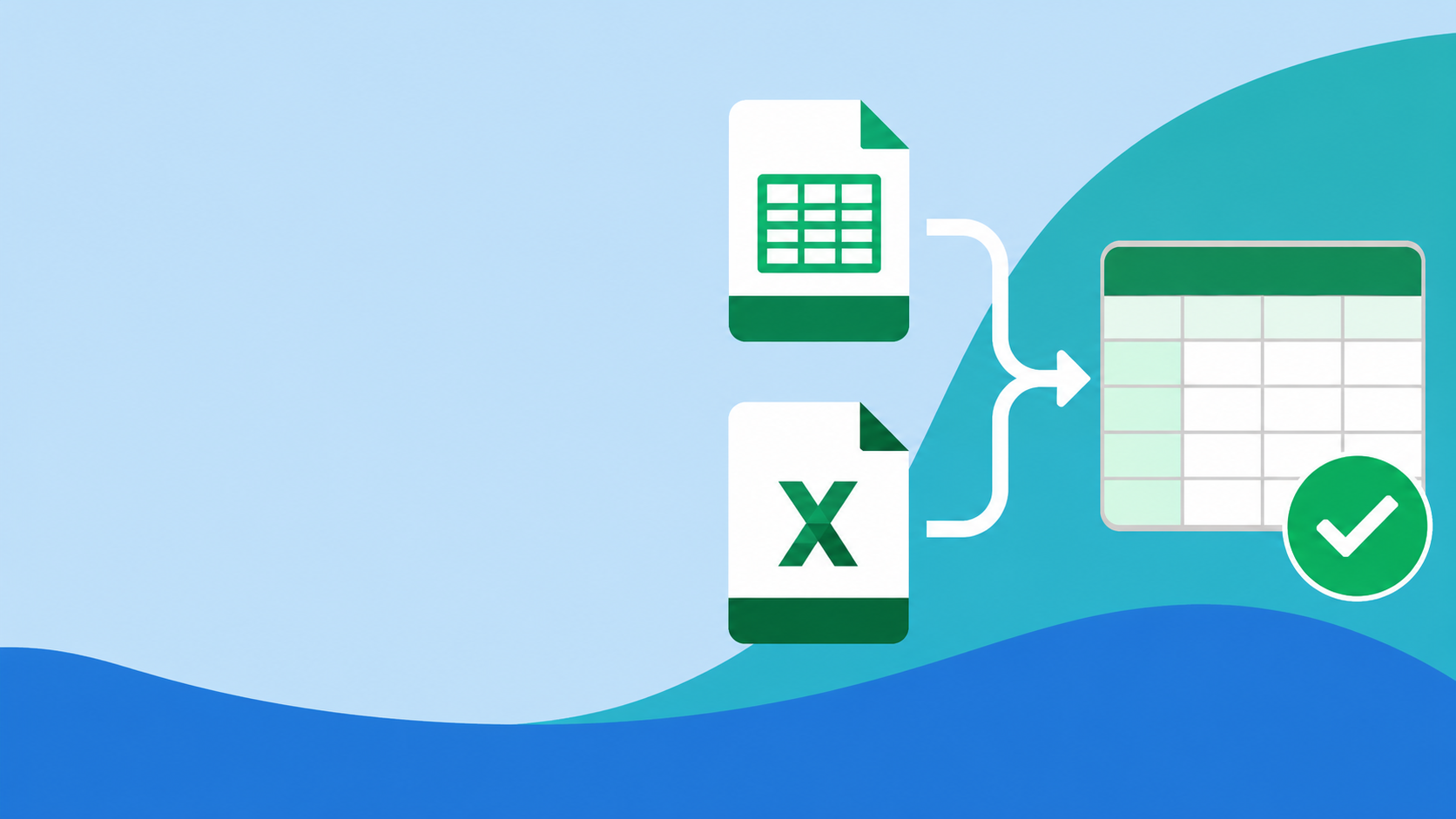
When two datasets come from different systems, have different headers, or use different column structures, standard Excel formulas and basic comparison tools quickly become unreliable. A powerful excel diff tool turns that manual, error-prone review into a structured comparison workflow—without forcing you to rebuild both files into the same template first.

BankGPT provides an Excel Compare workflow designed for real business data: reconciliation between financial exports, CRM list validation, customer-record matching, supplier-data checks, migration validation, and any other task where you need to identify overlapping records across two structured files.
What an Excel Diff Tool Can Do
A typical Excel compare task is not always a comparison of two identical workbooks. You may need to compare a CSV exported from a CRM with an XLSX downloaded from an accounting system. One file may use Customer Name, Phone, and Invoice Amount, while the other contains Client, Mobile Number, and Payment Total.
Most basic spreadsheet tools expect matching file formats, identical headers, and the same column order. An excel diff tool is more flexible: it lets you define which columns represent the same business meaning, even when their names and positions differ. The system can then compare records using the rules that matter to your organization.
This approach works for same-source files as well as different-source files. If two fields describe the same information and their values can be matched, you can find the intersection of the two datasets without manually standardizing every column in advance.
Step 1: Upload and Preview Files
Start by opening the Excel Diff Tool and uploading two structured data files. Supported formats include XLSX, XLX, JSON, CSV, and TSV. The two files do not need to use the same format: for example, you can compare a JSON export with a CSV file, or an XLSX report with a TSV dataset.
After uploading, preview both files in an online Excel-style view. This helps you verify that the rows, headers, values, and empty fields were imported correctly before comparing anything. The comparison runs through a local program workflow, so your data is handled locally rather than sent to a remote server for processing. That is especially useful for files containing customer information, transaction records, internal IDs, or sensitive operational data.
The excel diff tool also supports repeated online comparisons of larger files up to 10MB. Because the comparison algorithm runs locally and is designed for efficient processing, it is suitable for iterative checks instead of one-off manual reviews.
Why Field Mapping Has Four Steps
Field mapping may seem more involved than a one-click comparison, but it is the reason cross-format and cross-source matching can be both accurate and explainable. Different datasets are rarely aligned by default. Their headers, column order, number of fields, and value formats often differ.
If a tool guesses the mapping automatically, it may incorrectly match a company name with a contact name, an amount with a quantity, or an address with a note. A four-step setup puts the business logic in your hands. It takes a few minutes, but it prevents misleading matches and makes the result reusable for future comparisons.

1. Select Headers from Both Files
Click Compare to open a window that lists the first excel keys and second excel keys. Choose the headers that should participate in the comparison. You must select at least three keys, although you can select all keys if appropriate.
Choose stable, high-value fields whenever possible. Customer name, phone number, order number, date, and transaction amount are usually more reliable than a single general-purpose text field. Selecting multiple keys reduces false matches when one value is duplicated or incomplete.
2. Create One-to-One Key Mappings
Next, choose the corresponding fields in order. For example, map Client Name on the left to Customer Name on the right, Mobile to Phone Number, and Invoice Total to Payment Amount.
This is the key capability of an excel diff tool. The headers do not need to use the same language, spelling, or naming convention. You define the semantic relationship between the two files, so the algorithm can compare the right business fields rather than relying on matching header text.
3. Choose Exact or Fuzzy Matching
For every mapped key pair, select either exact matching or fuzzy matching. Use exact matching for values such as order IDs, invoice numbers, phone numbers, account numbers, and other standardized identifiers. Use fuzzy matching for names, addresses, product descriptions, comments, and other unstructured text.
For example, Beijing Chaoyang A Road No. 1 and No. 1, A Rd., Chaoyang, Beijing may describe the same location but are not textually identical. Fuzzy matching helps identify these meaningful similarities while exact matching keeps critical identifiers strict.
4. Calculate the Matching Dataset
After confirming the key mappings and comparison modes, the algorithm calculates the final intersection: records that meet the criteria you defined. This fourth step is important because the result is based on your specific mapping rules, not on an opaque automatic guess.
The four-step workflow is therefore not unnecessary complexity. It captures what your team already knows: which columns mean the same thing, which values must match exactly, and which textual differences are acceptable. That makes the comparison accurate, auditable, and repeatable—advantages that simple spreadsheet diff tools cannot provide.
Review Matches in Both Tables
Once the comparison is complete, the excel diff tool marks matched records in both online Excel tables. Click a record on one side and the interface locates the corresponding matched record on the other side. This makes human review much faster than scrolling through two long sheets and searching row by row.

For example, suppose the left file includes Name, Phone, Address, and Amount, while the right file includes Customer, Contact Details, Shipping Address, Paid Amount, and Channel. You can compare only three meaningful pairs: Name/Customer, Phone/Contact Details, and Amount/Paid Amount. Set phone and amount to exact matching, and name to fuzzy matching. Even though the right-hand file contains an extra Channel column and uses a different address format, the comparison can still locate valid intersections based on the selected rules.
This "algorithm first, human confirmation second" workflow is ideal for reconciliation, master-data management, list validation, supplier-data checks, and migration acceptance. Instead of forcing all data into a single template or maintaining fragile formula-based comparison sheets, you can compare the data as it actually exists.
Best Use Cases
- Compare multiple files with the same structure to find duplicates, matching records, and differences.
- Compare CSV, XLSX, JSON, and TSV files from different systems to identify shared records.
- Match datasets with different column counts, header names, and column ordering through business-level key mapping.
- Repeatedly compare files up to 10MB with efficient local processing and stronger privacy protection.
- Use AI-assisted fuzzy matching to compare unstructured values whose wording differs but whose meaning is the same.
If you only need to compare two identical worksheets, a basic formula may be enough. But if you need to find the same records across different structures, sources, formats, and naming conventions, mapping is not an optional extra—it is the foundation of a trustworthy result. Try the Excel Diff Tool for your next cross-format data comparison, and visit BankGPT to explore more intelligent data-processing tools.
Frequently Asked Questions
Can an excel diff tool compare files with different headers and formats?
Yes. You can upload a CSV, XLSX, JSON, or TSV file on each side, even when the two files use different column names, column counts, and column order. The four-step field mapping lets you define which columns carry the same business meaning, so the comparison works on real relationships instead of identical header text.
What is the difference between exact and fuzzy matching?
Exact matching requires the values to be textually identical, which is right for order IDs, invoice numbers, phone numbers, and account numbers. Fuzzy matching accepts similar but not identical wording, which is right for names, addresses, and product descriptions. You can mix both modes across different mapped key pairs in the same comparison.
Is my data safe when I compare files online?
The comparison runs through a local program workflow, so your files are processed locally rather than sent to a remote server for handling. That makes the tool suitable for customer information, transaction records, internal IDs, and other sensitive operational data.
How large can the files be for comparison?
The excel diff tool supports repeated online comparisons of larger files up to 10MB. Because the comparison algorithm runs locally and is designed for efficient processing, you can run iterative checks instead of one-off manual reviews.
Conclusion
Matching records across different file formats does not have to mean rebuilding both files into the same template. With an excel diff tool, you upload the data as it actually exists, define the fields that mean the same thing, choose exact or fuzzy matching per key, and review the results in both tables. The result is accurate, auditable, and repeatable for reconciliation, list validation, and migration checks. Try the Excel Diff Tool on BankGPT for your next cross-format comparison.
Jordan Lee is a small business owner and independent reviewer of banking and FinTech tools. He writes practical, no-jargon guides to help founders spend less time on paperwork and more time growing their ventures.