
If your accounts payable routine is opening vendor PDFs one at a time and typing invoice numbers, dates, and totals into a spreadsheet, you already know where the month goes. Manual entry costs roughly 10 to 15 minutes per invoice, so a month-end stack of 100 invoices can consume more than 25 hours of pure typing before anyone even reviews the numbers. When you batch process invoices instead, one upload handles the entire folder. An AI invoice scanner such as BankGPT reads every file, extracts the key fields, and returns structured data you can open in Excel in minutes.
Why Batch Invoice Processing Matters in 2026 and Beyond

Batch invoice processing means uploading multiple invoice files at once and letting software extract data from all of them automatically, instead of opening each document individually. It sounds like a small convenience. In practice, it changes the economics of accounts payable for any business that receives more than a couple of dozen invoices a month.
Three problems make one-by-one processing unsustainable as volume grows:
- The per-invoice cost never goes down. Whether you handle 20 invoices or 200, each one still takes 10 to 15 minutes of human attention. Manual data entry also introduces errors at a rate of roughly 1 to 4 percent, and every mistake triggers a correction cycle that costs more time than the original entry.
- Volume is not evenly distributed. Invoice arrivals concentrate at the end of billing cycles and at quarter or year end. Without batch capability, that spike either becomes a backlog or becomes overtime.
- Output drifts over time. When invoices are processed one by one across days, weeks, or different people, the resulting spreadsheet accumulates inconsistencies: different column names, different date formats, different levels of line-item detail. Batch processing applies one consistent structure to every invoice in the batch, which is exactly what auditors and accounting software expect.
The result of processing invoices in a single batch is a consistent, structured file produced in minutes rather than days, with human effort redirected from typing to reviewing.
Who Needs to Batch Process Invoices

You do not need enterprise volumes to benefit. These teams see the biggest immediate payoff:
- Bookkeepers and accounting firms that receive stacks of client invoices every month and re-key them into ledgers before reconciliation
- Accounts payable teams facing month-end spikes, when dozens or hundreds of supplier invoices arrive within the same week
- Restaurant and hospitality groups that collect food and beverage distributor invoices weekly and need line-item data for cost tracking and vendor comparison
- Construction and trades businesses handling supplier invoices, material receipts, and subcontractor bills across multiple job sites
- E-commerce sellers who receive supplier and fulfillment invoices from Amazon, Shopify, and marketplaces and need clean records for accounting and tax filing
- Small business owners doing their own books, for whom batch processing removes the single most time-consuming chore of the month
If your invoice count is under about 20 per month, careful manual entry may still be fine. Above that threshold, the math shifts quickly in favor of automation. For a broader look at the tools available, see our guide to the top 5 invoice scanning tools for small business.
Manual Entry vs. Batch Processing: The Numbers
| Scenario | Manual entry | Batch processing |
|---|---|---|
| Time per invoice | 10 to 15 minutes | Seconds, uploaded together |
| Error rate | 1 to 4 percent | Near zero on clean digital PDFs |
| 100 invoices per month | 25+ hours of typing | One upload, minutes of review |
| Output consistency | Varies by day and by person | Identical structure every batch |
| Month-end spike | Backlog or overtime | Same single upload |
The savings recur every billing cycle, and the accuracy gain compounds: fewer typos means fewer reconciliation breaks, fewer vendor disputes, and fewer surprises at tax time.
How to Batch Process Invoices: A Step-by-Step Guide
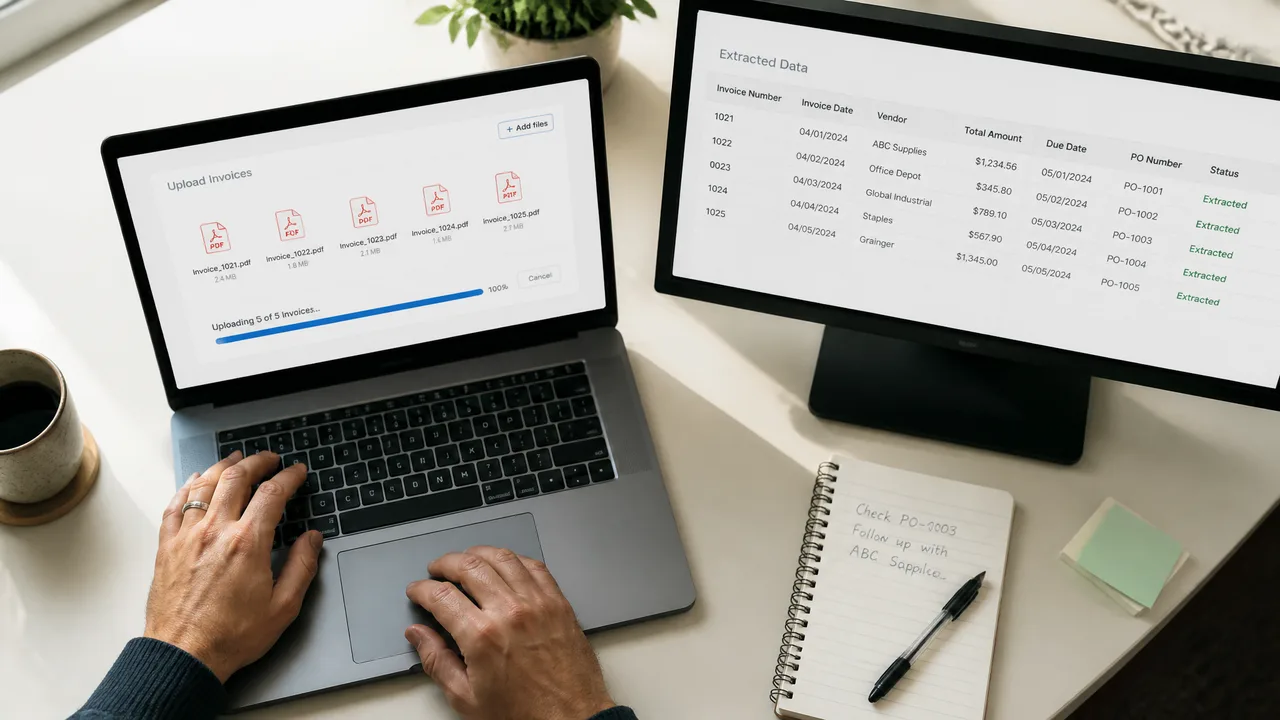
Getting Started with Batch Invoice Processing
The workflow below uses the BankGPT AI Invoice Scanner, which supports bulk uploads and mixed formats, but the same steps apply to any capable batch tool.
- Collect the files into one folder. Gather the invoices for the period: PDFs downloaded from vendor portals, email attachments, scans, and phone photos of paper invoices can all go into the same batch. A simple naming convention such as vendor name plus date helps you stay organized, though the AI reads the document content rather than the file name.
- Upload the whole batch at once. Drag all files into the upload area. You do not need to group invoices by vendor or format first, because the extraction model reads each document by meaning rather than by fixed layout.
- Let the AI extract the fields. Each invoice is processed for vendor name, invoice number, invoice date, due date, PO number, subtotal, tax, total, and line items such as description, quantity, unit price, and line total.
- Review the outliers, not every row. Spot-check a sample: the first invoice, the last one, and a few random files in between. Look specifically at handwritten corrections, faint scans, and multi-page invoices whose line-item tables cross a page break. A 25-invoice batch typically takes a few minutes to review this way.
- Export and use the results. Download the extracted data as Excel or CSV. From there you can sort and filter by vendor or date, build pivot tables for spend analysis, or import the file into QuickBooks, Xero, or your accounting system.
For deeper detail on field-level extraction, our guide on how to extract data from invoices automatically covers the same workflow for single documents.
Best Practices for Accurate Batch Invoice Processing Results
Speed is only useful if the output is correct. At volume, small issues multiply, so build these safeguards into your routine:
- Start with the best source files you can get. Machine-generated PDFs extract with near-perfect accuracy. For paper invoices, scan at 200 dpi or higher, and request clean digital PDFs from vendors when a fax or photocopy looks bad.
- Validate the source pile before processing. Check for blank pages, duplicate invoices, and files that are not invoices at all. Catching a duplicate before the payment run is far cheaper than chasing a double payment afterward.
- Spot-check a sample, not everything and not nothing. Reviewing the first, last, and a few random invoices catches most issues without recreating the manual workload you were trying to eliminate.
- Keep one consistent output template. Use the same columns every cycle so you can stack weekly or monthly outputs into a running ledger and compare periods without cleanup.
- Split very large batches sensibly. For 50 or more multi-page files, splitting by vendor category or month keeps processing manageable and makes review easier.
- Verify arithmetic before payment. Extraction tools read what is printed. If a vendor prints a wrong subtotal or tax amount, the extraction faithfully reports it, so totals should still be verified before the payment run.
Frequently Asked Questions
What is batch invoice processing?
Batch invoice processing is uploading multiple invoice files at once and letting software extract data from all of them in a single job, rather than opening and entering each invoice individually. The output is one structured file, such as an Excel spreadsheet, containing the fields from every invoice in the batch.
How many invoices can I process in one batch?
There is no practical lower limit, and tools such as BankGPT handle bulk uploads ranging from a handful of files to thousands. The practical constraint is review attention: spot-checking works best when a batch is organized by vendor or period.
Does batch processing work with invoices from different vendors?
Yes. Modern AI extraction reads fields by meaning rather than by position, so a batch can mix invoices from dozens of vendors with different layouts, currencies, and languages, and still produce one consistent set of columns. This is the main advantage over template-based OCR, which typically requires a configuration per vendor format.
Can I batch process scanned or photographed invoices?
Yes. Scanned documents at standard office quality and clear phone photos both extract reliably. Very low-quality faxes, heavy page grain, and handwritten corrections over printed amounts deserve extra spot-checking.
How do I get batch results into Excel or my accounting software?
Export the extraction as Excel or CSV, then import it into QuickBooks, Xero, or another accounting package, or analyze it directly in a spreadsheet. If you also convert bank statements for reconciliation, the same platform offers a bank statement to Excel converter that pairs well with invoice batches.
Start Batch Processing Your Invoices
The bottleneck in accounts payable is rarely judgment; it is typing. When you batch process invoices, a month-end folder of PDFs becomes a clean, structured Excel file in minutes, with consistent columns, reviewable line items, and an audit-friendly trail behind every number. That is hours reclaimed every cycle and fewer errors surviving to the ledger.
You can try it now with the free AI Invoice Scanner on BankGPT: upload your invoice stack, review the extraction, and download the results in Excel, no accounting software setup required.
Jordan Lee, small business owner and independent reviewer of banking and FinTech tools.