
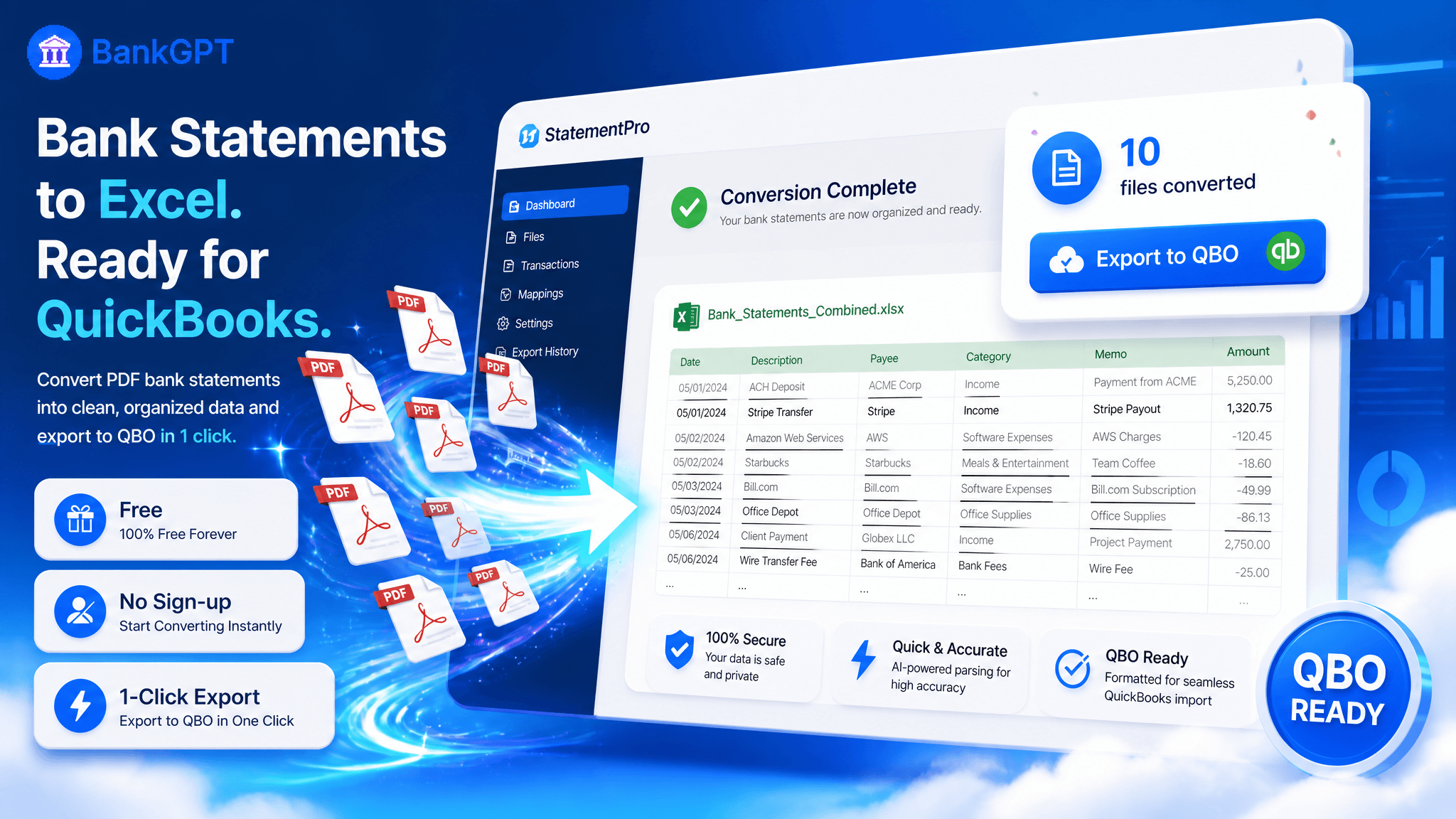
If you've ever stared at a PDF bank statement and wondered how to get it into QuickBooks without retyping every line, you're not alone. A QBO file is the one format QuickBooks imports like a real bank download — it arrives pre-recognized, matches existing entries, and de-duplicates automatically. Here is how to convert a bank statement to QBO from a PDF or CSV your ledger accepts — free, online, and with no account required to see results.
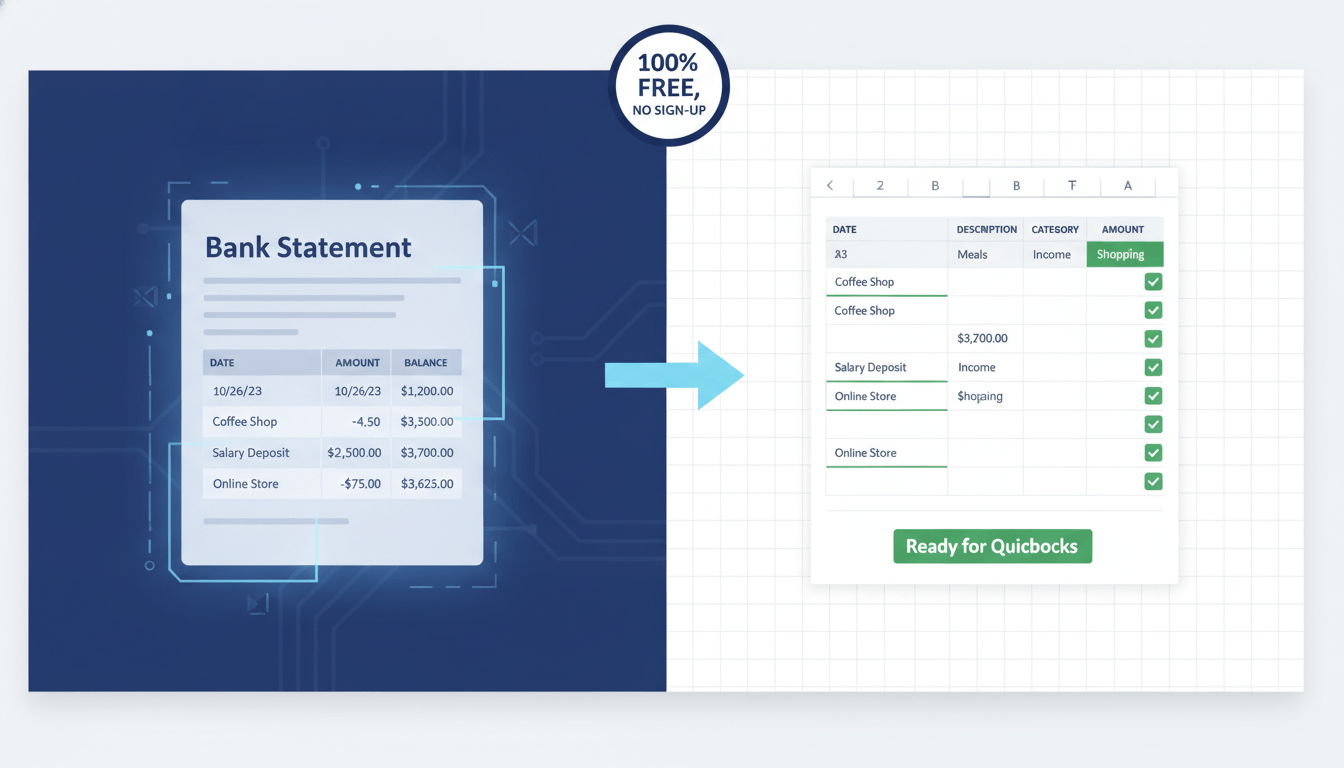
What a QBO File Is (and Why QuickBooks Prefers It)
A QBO file is QuickBooks' Web Connect format — a small, structured statement file built on the OFX standard. When you import it, QuickBooks reads the bank name, account type, and each transaction, then matches and de-duplicates entries the way a live bank feed would. That is the key difference from a CSV: a CSV dumps loose rows that you then map by hand, while a QBO arrives pre-recognized.
If your goal is to convert a bank statement to QBO and get transactions into QuickBooks without re-typing them, QBO is the format that behaves like a download straight from your bank. The hard part is not QuickBooks — it is producing the QBO from a statement your bank only hands you as a PDF.
The Three Ways to Convert a Bank Statement to QBO
Most people convert a bank statement to QBO using one of three methods. Here is each route, ranked by how much of the busywork it removes — from a one-click converter down to a hand-built spreadsheet.
Method 1 — Use a free online bank statement to QBO converter
This is the fastest route for most people, and the one we recommend if you value your time. A free bank statement to QBO converter reads the transaction table off your PDF or CSV, follows the running balance, and writes a QBO file your ledger imports without a column-mapping step. It is essentially an AI bank statement converter purpose-built to turn messy statements into clean QBO output.
Here's how to convert a bank statement PDF to QBO in three steps:
- Upload your statement. Drag in a PDF, CSV, or even a scanned image. Files are encrypted on arrival, and the bank statement to QBO converter accepts statements from thousands of banks — Chase, Bank of America, Wells Fargo, Barclays, HSBC, and hundreds more — so format quirks rarely trip it up.
- Let the AI read it. Each transaction is mapped to date, description, amount, and balance. You get a preview you can scan before exporting anything — no surprises after the download.
- Export QBO and import. In QuickBooks Online go to Bank transactions → Link account → Upload from file. In Desktop use File → Utilities → Import → Web Connect Files. The transactions land as a native bank feed.
No software to install, no card, and no account needed before you see the result. One account per file keeps the QBO import clean.
Method 2 — QuickBooks' built-in PDF upload
QuickBooks Online can now ingest a PDF or image statement and attempt to pull the transactions out automatically. It is a real feature — and it comes with constraints worth knowing before you commit to it:
- 350 KB upload cap. Plenty of single-month statements exceed that, and a scanned one almost always does. If your PDF hits the limit, you'll need another way to convert that bank statement to QBO.
- 1,000 lines per upload. A busy operating account or a full year of history has to be split into batches first, which means multiple uploads and extra reconciliation steps.
- Desktop takes no PDF at all. The AI upload is an Online-only feature; QuickBooks Desktop imports Web Connect QBO files, not raw statements. Converting a bank statement to QBO first is the only path for Desktop users.
- Review queue. Anything the AI is unsure about can be routed to Intuit reviewers before it lands in your ledger, adding unpredictable delays.
For the right statement — short, clean, and under 350 KB — the built-in upload works. For everything else, a dedicated free bank statement to QBO converter tends to be the more reliable path.
Method 3 — Rebuild the file by hand
You can open the PDF, copy each row into a spreadsheet, format dates and amounts, then save as a CSV QuickBooks accepts. It works, and it costs nothing — but a 300-line statement is roughly forty minutes of copy-paste, and the risk of a transposed digit grows with every row. Most people who start down this path abandon it after the first attempt and look for a proper bank statement to QBO converter instead.
Why a Free, No-Sign-up Converter Wins for Most People
The deciding factors are rarely the conversion itself — they are the friction around it. A reliable free bank statement to QBO converter removes the walls that slow you down. If you've ever tried QuickBooks' built-in upload only to hit the 350 KB cap, you already know exactly what that friction feels like:
| Constraint | QuickBooks built-in | Free online converter |
|---|---|---|
| File size limit | 350 KB cap | No size cap |
| Lines per upload | 1,000 max | Multi-page, unlimited lines |
| Account required | Must be logged in | No sign-up to see results |
| Scanned statements | Often fails | Read with OCR |
| QuickBooks Desktop | No PDF path | Exports QBO it imports |
For anyone who needs to convert a bank statement to QBO regularly — or just wants the job done in one pass — the right-hand column makes the decision straightforward.
5 Tips for a Clean QBO Import Every Time
- One account per file. A QBO carries a single bank header; mixing checking and savings transactions in one upload forces QuickBooks to guess — and guessing wrong means hours of manual correction.
- Review the preview first. Scan the extracted rows for stray lines before exporting. A two-second check beats a reconciled-then-broken ledger. Look for header text that got pulled into a transaction row, or dates that landed in the wrong column.
- Keep dates consistent. The converter normalizes dates automatically, but if you hand-edit anything, pick one pattern — MM/DD/YYYY or DD/MM/YYYY — and stick to it. A single row with a swapped month and day can throw off your entire reconciliation.
- Let QBO de-duplicate. Importing a period you already partially entered? QBO flags duplicates during matching — review the summary before you confirm, and you won't end up with doubled entries.
- Batch by month for Desktop. QuickBooks Desktop processes QBO files in date order, so convert each monthly statement to QBO individually and import them sequentially. Importing six months at once is tempting, but a month-by-month approach makes it far easier to spot anomalies.
Frequently Asked Questions
Still deciding? These are the questions people ask most right before they convert their first bank statement to QBO.
Can QuickBooks import a PDF bank statement directly?
QuickBooks Online can attempt a PDF or image upload through its built-in AI, but it caps the file at 350 KB, 1,000 lines per upload, and routes uncertain items to a review queue. QuickBooks Desktop has no PDF import path at all. For most statements, converting the PDF to a QBO file first is the more reliable route — especially if the statement runs more than a few pages.
Is there a free bank statement to QBO converter with no sign-up?
Yes. BankGPT's AI bank statement converter runs in your browser at no cost and does not ask you to create an account before you see results. You can convert a bank statement to QBO and download the file without entering payment details. Some teams later choose a paid plan for higher monthly volume, but the core QBO conversion stays free.
Does QBO de-duplicate transactions on import?
It does — and this is one of the biggest advantages of the QBO format. A QBO file imports as a native bank feed, so QuickBooks matches incoming transactions against existing entries and flags potential duplicates for review before you confirm. That is why converting a bank statement to QBO beats importing a raw CSV, which lands as loose rows with no matching step and no built-in duplicate protection.
What if my statement is scanned or has many pages?
A good bank statement to QBO converter reads scanned PDFs and phone photos with OCR, then parses the transaction table underneath. Multi-page statements are handled in one pass — the rows from every page are extracted and written into a single continuous QBO file. A twelve-page PDF becomes one clean import rather than a pile of fragments you have to stitch together by hand.
Which banks are supported?
The converter is built around real statement layouts rather than one generic template, and it accepts statements from thousands of banks worldwide — including major US institutions (Chase, Bank of America, Wells Fargo, Citibank), UK banks (Barclays, HSBC, Lloyds), Canadian banks (TD, RBC, Scotiabank), Australian banks (CommBank, ANZ, NAB), and Indian banks (HDFC, ICICI, SBI). Because it adapts to each bank's column structure, even unlisted formats typically parse correctly.
Start Converting Bank Statements to QBO Today
You don't need expensive software to get a statement into QuickBooks. Start from a PDF or CSV, use a free online bank statement to QBO converter, and import a QBO that behaves like a real bank download — no 350 KB cap, no 1,000-line limit, and no account required to see results.
Next time you're facing a statement that needs to be in QuickBooks by end of day — and the built-in uploader just bounced your file — you'll know exactly what to do. Stop retyping transactions by hand and let an AI bank statement converter do the heavy lifting. It reads the statement, follows the running balance, and writes a QuickBooks-ready QBO in minutes — free, online, and with no sign-up.